Deploying Flowable with Helm Charts
This document describes how you can install Flowable on Kubernetes or the OpenShift Container Platform (OCP). The best way to do this is to use the Helm chart provided by Flowable.
Helm Repository Authentication
As a first step it is required to authenticate to the Flowable Artifactory which is hosting the Flowable Helm chart.
This can be done either with your Flowable credentials or your account and an API key. To use an API key:
go to Flowable Artifacts and select at the top right Welcome ..., then Edit Profile.
Unlock the settings with your password and generate a new API key.
The following command can be used to authenticate against the artifactory:
helm repo add flowable https://repo.flowable.com/flowable-helm \
  --username <FLOWABLE_REPO_USER> \
  --password <FLOWABLE_REPO_PASSWORD>
 tip
tipIn case you do not have credentials yet, please reach out to your contact person at Flowable (e.g. Account Executive). Alternatively, you can also try out Flowable without docker with the enterprise trial.
Flowable Docker Registry Image Pull Secret
 note
noteThe example commands are going to use the Kubernetes command line tool (kubectl) and Kubernetes nomenclature.
The same is also valid for OpenShift, the only difference is that instead of using kubectl, the OpenShift Container Platform CLI (oc) can be used
By default, the Flowable Helm Chart will try to download the vanilla Flowable images from the Flowable Docker registry. That registry needs authentication with the same repository user and password as used for accessing the Helm Chart above. The credentials can be passed to the appropriate Kubernetes namespace by creating a regcred docker-registry secret.
If you prefix the secret with the name of your Helm chart release, the chart will automatically find it and use it to authenticate the download of the Flowable Docker images.
The following command can be used to create the recred secret (make sure the correct server and namespace are set first):
kubectl create secret docker-registry yourReleaseName-flowable-regcred \
  --docker-server=repo.flowable.com \
  --docker-username=<FLOWABLE_REPO_USER> \
  --docker-password=<FLOWABLE_REPO_PASSWORD>
Flowable License Management
The Flowable applications will need a license to be able to run (see license file)
A license file can either be provided on infrastructure level as a Kubernetes Secret or at runtime by uploading it with a Flowable user with appropriate permissions in the Flowable UI.
Both approaches have their benefits and drawbacks. By default, the Flowable Helm chart will search for a license secret.
License Secret
To create a license secret within your namespace, the following command can be used:
kubectl create secret generic yourReleaseName-flowable-license --from-file=flowable.license=/your/local/licensefile/location/flowable.license
If you prefix the secret with the name of your Helm chart release, the chart will automatically find it and use it.
Database License
To use database persisted licenses instead of file-based licenses provided by a Secret, the following values has to be set
in your values.yaml file:
flowable:
  licenseConfig:
    type: db
Please also check Renewing the License using database-based licenses on how to upload a new or update an existing database license.
Helm Chart Installation Instructions
The details how to configure the Flowable Helm chart are also described in the README file of the helm chart.
You can read the helm charts with the following command:
helm show readme flowable/flowable
To install the chart to the correct cluster and namespace, first make sure you have configured the Kubernetes command line tools appropriately.
The chart can be installed by using the following command:
helm install yourReleaseName flowable/flowable -f yourCustomValues.yaml
Versioning Concept
There is a chart version for every Flowable version that gets released. If not specified otherwise, the chart will download the Flowable image matching with the version of the chart.
The patch version number of the chart is independent of the Flowable version. It is suggested to always use the latest patch version of the chart for the matching Flowable minor version. For example, for Flowable version 2026.1.0, you should use the latest 2026.1.X chart version
You can also use different major/minor Flowable versions with the newest chart if necessary. The infrastructure provided by the chart should usually be compatible with older versions of the images, keep in mind though, that this is not guaranteed.
The Flowable image tag version can be specified globally for all Flowable applications:
To do this, the values.yaml needs the following content:
flowable:
  version: 2026.1.0
It is also possible to define custom images and versions per Flowable application (Work, Control, Design, etc.). Please see Configure Custom Images for details.
Resource Naming
By default, all Kubernetes resources created by the chart are prefixed with the Helm release name (e.g. a release named quickstart creates resources like quickstart-work, quickstart-control, etc.).
Since chart version 2026.1.0, two values allow you to customize this prefix:
| Value | Effect | Example (release: quickstart) |
|---|---|---|
nameOverride | Replaces the chart name portion. Prefix becomes <release>-<nameOverride>. | nameOverride: myorg → quickstart-myorg-work |
fullnameOverride | Replaces the entire prefix. Prefix becomes <fullnameOverride>. | fullnameOverride: myapp → myapp-work |
These overrides apply consistently to all resources: Deployments, Services, ConfigMaps, PersistentVolumeClaims, Ingress rules (including hostnames), and references between resources (e.g. a Deployment's configMapRef always points to the correctly prefixed ConfigMap).
 caution
Set these values only at first install. Changing nameOverride or fullnameOverride on an existing release renames every resource, which deletes PVCs (potentially causing content-storage data loss), changes Service DNS names, and triggers a pod recycle.
To migrate an existing release, back up your data, uninstall, and reinstall with the new values.
Chart Dependencies
The Flowable Helm chart does not bundle a database, Elasticsearch, or ActiveMQ — these services have to be provided externally (the corresponding chart dependencies were removed in chart version 2025.2).
cautionFlowable requires a persistent database to run: all runtime and historic state (cases, processes, work items, deployed models) lives in the database, so a real external database is a hard prerequisite for any meaningful use of the platform.
This is why, since chart version 2026.1.0, the chart no longer starts on a non-persistent in-memory H2 database by default: no datasource is configured at all (inMemoryDb.enabled: false), and the applications will not start until an external database is configured (or the in-memory H2 database is explicitly enabled for demo purposes).
See configure an external database for details.
Note: in chart versions 2025.2.x, the inMemoryDb.enabled option defaulted to true.
Options for PostgreSQL:
- Use a managed PostgreSQL service provided by your cloud provider e.g Amazon RDS, Azure Database for PostgreSQL, Google Cloud SQL
- Use a Kubernetes Operator to manage PostgreSQL instances like e.g. CloudNativePG or Zalando Postgres Operator
- Install PostgreSQL separately using the Bitnami Helm chart either in the same namespace or a dedicated one.
- Use an on premise dedicated installation of PostgreSQL.
Options for Elasticsearch:
- Use a managed Elasticsearch service provided by your cloud provider e.g Azure Elastic, Google Cloud Elasticsearch
- Use a Kubernetes Operator to manage Elasticsearch instances like e.g. Elastic Cloud on Kubernetes (ECK)
- Install Elasticsearch separately using the Bitnami Helm chart either in the same namespace or a dedicated one.
- Use an on premise dedicated installation of Elasticsearch.
Options for ActiveMQ (only needed for Flowable Engage):
- Use Kubernetes enabled ActiveMQ solutions such as ArtemisCloud to provide an ActiveMQ service in Kubernetes.
- Use an on premise dedicated installation of ActiveMQ or ActiveMQ Artemis.
Depending on the chosen option, you will have to migrate existing data from the embedded PostgreSQL and Elasticsearch instances to the new services. See Migrating PostreSQL and Elasticsearch Data to Chart version 2025.2 for details.
To configure Flowable to access the Database and Elasticsearch instances, please refer to configure an external elasticsearch and configure an external database.
Chart versions before 2025.2
Until chart version 2025.2, the Flowable Helm chart used the following dependencies:
| Dependency | URL | Version | Value Namespace |
|---|---|---|---|
| Bitnami PostgreSQL | https://github.com/bitnami/charts/tree/main/bitnami/postgresql | 16.7.13 | postgres |
| Bitnami Elasticsearch | https://github.com/bitnami/charts/tree/main/bitnami/elasticsearch | 21.6.3 | elasticsearch |
cautionAs of 28 August 2025, Bitnami moved the images for PostgreSQL and Elasticsearch, used by the Flowable Helm Chart, to a Legacy repository.
The most recent versions of the Flowable Helm Chart already include the needed changes to handle this.
If your chart installation is not able to find the Postgres and/or Elasticsearch images anymore on container creation, add the following additional values to your values.yaml file to download the images from the Bitnami Legacy repository instead (merge them with any existing values of the same value namespace if needed).
postgres:
  image:
    repository: bitnamilegacy/postgresql
  global:
    security:
      allowInsecureImages: true
elasticsearch:
  image:
    repository: bitnamilegacy/elasticsearch
  global:
    security:
      allowInsecureImages: true
Chart Infrastructure
As shown above, a custom values.yaml file can be provided to configure how the chart will be installed.
There is a default values.yaml provided within the chart so only differentiating values need to be explicitly added to
your custom values file.
In your custom values.yaml you should at least provide the storage provisioner and storageClass that is fitting to your
Kubernetes environment (depends on the underlying infrastructure. For Azure, this is kubernetes.io/disk.csi.azure.com, default)
Without further custom values, the chart will deploy the following default infrastructure:
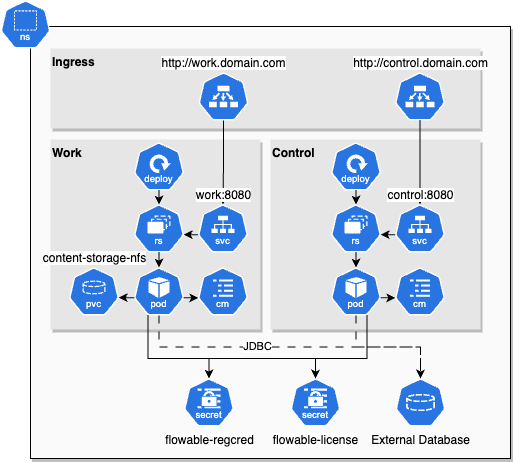
cautionIt is crucial to use an external managed database, e.g. PostgreSQL. The Flowable Helm Chart does not bundle a database, and since chart version 2026.1.0 no database is configured by default — the applications will not start until a database is configured. Keep in mind, that a database within the Kubernetes cluster is by default not backed up and also might due to the storage requirements not perform well. Please refer to configure an external database for the configuration, and backup and restore for the backup requirements.
Default Sizing
The default sizing of the resources, without further customization, looks as follows:
| Value Key | Default |
|---|---|
work.enabled | true |
work.replicas | 1 |
work.resources.requests.cpu | 100m |
work.resources.limits.cpu | 1000m |
work.resources.requests.memory | 3Gi |
work.resources.limits.memory | 3Gi |
work.storage.size | 3Gi |
control.enabled | true |
control.replicas | 1 |
control.resources.requests.cpu | 100m |
control.resources.limits.cpu | 1000m |
control.resources.requests.memory | 1Gi |
control.resources.limits.memory | 1Gi |
 info
infoThese are the default values to get you started and might not be the properties needed for your setup and use case. Please refer to the official system requirements page for information on how to size the different resource properties for different Flowable environments.
Enable Flowable Design
By default, the chart deploys without Flowable Design.
The reason is, that Flowable Design is often not deployed to production environments.
However, Flowable Design can be activated by setting the appropriate value to true.
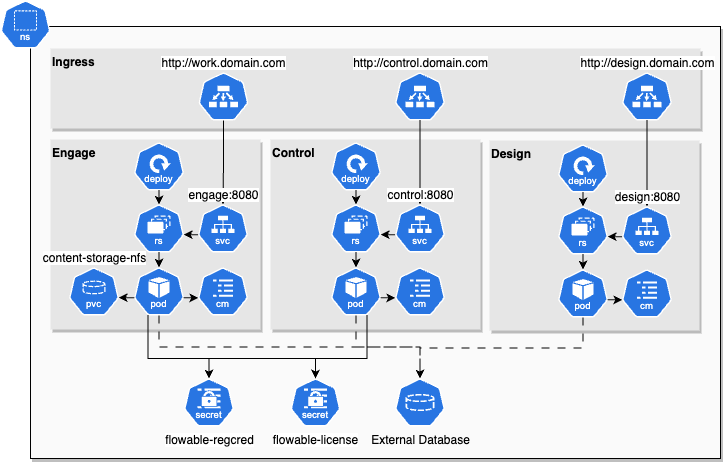
| Value Key | Target | Default |
|---|---|---|
design.enabled | true | false |
design.replicas | 1 | |
design.resources.requests.cpu | 100m | |
design.resources.limits.cpu | 1000m | |
design.resources.requests.memory | 3Gi | |
design.resources.limits.memory | 3Gi |
infoThese are the default values to get you started and might not be the properties needed for your setup and use case. Please refer to the official system requirements page for information on how to size the different resource properties for different Flowable environments.
Enable Flowable Hub
Flowable Hub is the successor of the Flowable Control application. In the 2026.1.x release both Flowable Hub and Control are included; starting with the 2026.2.x version, Flowable Hub will be the included one.
Flowable Hub is disabled by default and can be activated by setting the appropriate value to true.
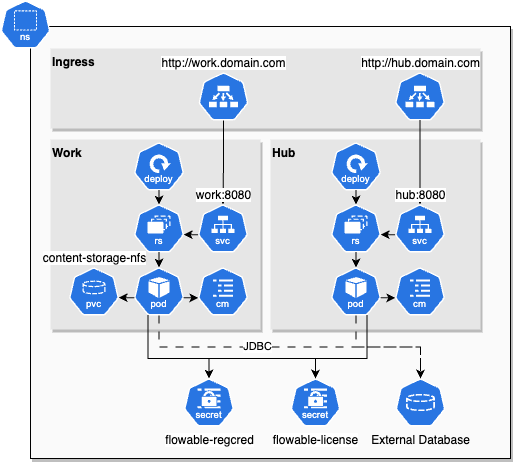
| Value Key | Target | Default |
|---|---|---|
hub.enabled | true | false |
hub.replicas | 1 | |
hub.resources.requests.cpu | 100m | |
hub.resources.limits.cpu | 1000m | |
hub.resources.requests.memory | 1Gi | |
hub.resources.limits.memory | 1Gi |
The standard chart extension points and environment variables also apply to Flowable Hub.
infoRunning Flowable Hub with replicas greater than 1 and OAuth2 requires Redis-backed sessions instead of sticky sessions. Example cluster configuration:
hub:
  envVariables:
    application.hub.redis-enabled: "true"
    spring.data.redis.host: my-redis
    spring.data.redis.port: "6379"
    spring.data.redis.password: changeme
    spring.data.redis.ssl.enabled: "true"
    # Key prefix for Spring Session entries (default "spring:session")
    spring.session.redis.namespace: flowable-hub
Enable Flowable Engage
By default, the chart deploys Flowable Work. But Flowable Engage can be activated by using the appropriate values to enable Engage and disable Work. Work and Engage are mutually exclusive. Enabling them both at the same time will lead to errors when deploying the chart.
Enabling Engage requires an ActiveMQ service, that is needed as a STOMP transport layer for messages between Flowable Chat clients. Also, Elasticsearch is a requirement for Flowable Engage. Since chart version 2025.2, the embedded ActiveMQ instance is no longer part of the Flowable Helm Chart and needs to be provided externally.
Configure the properties flowable.websocket.stomp-broker-addresses and spring.artemis.broker-url with the connection URL of your ActiveMQ instance.
In values.yaml file:
envVariables:
  flowable.websocket.stomp-broker-addresses: your-activemq-host:61613
  spring.artemis.broker-url: tcp://your-activemq-host:61616
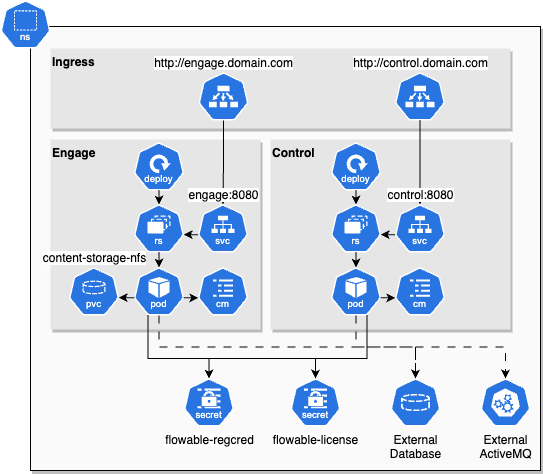
| Value Key | Target | Default |
|---|---|---|
work.enabled | false | true |
engage.enabled | true | false |
engage.replicas | 1 | |
engage.resources.requests.cpu | 100m | |
engage.resources.limits.cpu | 1000m | |
engage.resources.requests.memory | 3Gi | |
engage.resources.limits.memory | 3Gi | |
engage.storage.size | 3Gi |
infoThese are the default values to get you started and might not be the properties needed for your setup and use case. Please refer to the official system requirements page for information on how to size the different resource properties for different Flowable environments.
Enable Flowable Engage Adapters
The following Adapters can be enabled for Flowable Engage (also multiple at the same time):
| Value Key | Target | Default |
|---|---|---|
whatsapp.enabled | true | false |
wechat.enabled | true | false |
line.enabled | true | false |
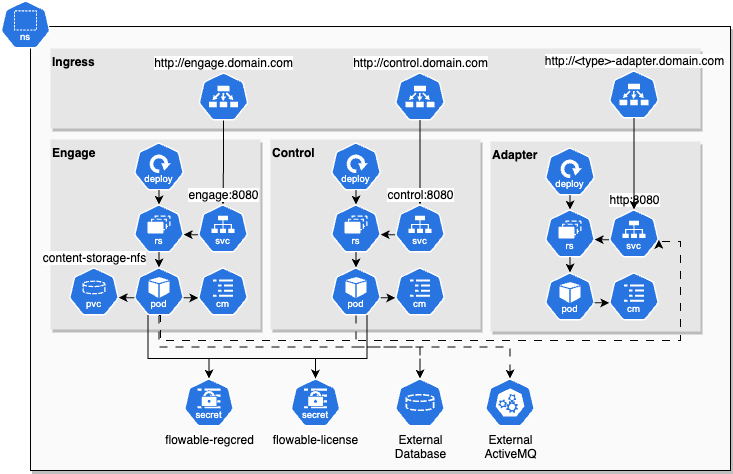
All adapters share the following default resource settings:
| Value Key | Target | Default |
|---|---|---|
<adapter>.replicas | 1 | |
<adapter>.resources.requests.cpu | 100m | |
<adapter>.resources.limits.cpu | 1000m | |
<adapter>.resources.requests.memory | 1Gi | |
<adapter>.resources.limits.memory | 1Gi |
infoThese are the default values to get you started and might not be the properties needed for your setup and use case. Please refer to the official system requirements page for information on how to size the different resource properties for different Flowable environments.
Ingress
For OpenShift see OpenShift Routes
Ingress resources for enabled Flowable applications will be created by default with the chart. If an external Ingress or OCP routes should be used instead of ingress objects it is possible to deactivate them by setting ingress.enabled: false.
Please refer to the charts README.md for a description of all available ingress values.
Ingress Controllers
The kubernetes/ingress-nginx controller is retired (end-of-life March 2026, no further releases or security patches).
Since chart version 2026.1.0, the Ingress resources created by the chart are no longer coupled to ingress-nginx:
ingress.ingressClassstill defaults tonginxfor backwards compatibility, but should be set to the class of whichever ingress controller you run.- The built-in
nginx.ingress.kubernetes.io/*annotations (proxy timeouts, body-size, CORS, websocket upgrade) are rendered only wheningress.nginxCompatAnnotationsistrue(the default). To use a controller that does not understand them, setingress.nginxCompatAnnotations: falseand supply your controller's equivalents viaingress.annotations.
The recommended drop-in replacement is Traefik: Traefik v3.7+ ships a kubernetes-ingress-nginx provider that translates these exact annotations into Traefik configuration, so the chart's default Ingress works with minimal change. Note that the provider must be explicitly enabled in your Traefik install (it is not on by default), and ingress.ingressClass must be set to your Traefik IngressClass.
Domain
The Ingress can be configured to use a custom domain: The value for this is ingress.domain It is set to flowable.com by default.
Mapping Type
Ingress values support different ingress.mappingTypes for the set domain:
| mappingType | Description | Examples |
|---|---|---|
| host | Hostnames (subdomains) are used to map ingress URLs to Flowable applications | http://work.example.com http://control.example.com |
| path | URL path are used to map ingress URLs to Flowable applications. The contextPath value defines the used path | http://example.com/work http://example.com/control |
HTTPS / TLS
HTTPS/TLS encryption can be enabled for the ingress by setting ingress.tls: true. With this, the ingress will enable edge termination for incoming HTTPS connections. The certification issuer can be configured with ingress.certManagerClusterIssuer. By default letsencrypt will be used.
Gateway API
Preview FeatureGateway API support is a preview feature in chart version 2026.1.0. Details may change in later chart versions. Ingress remains the default and fully supported path.
The Gateway API is the successor to Ingress and the recommended path off ingress-nginx.
Enable it with gateway.enabled: true. The chart then creates one HTTPRoute per enabled service. Ingress and Gateway API can both be enabled at the same time during a migration cutover.
Hostnames
HTTPRoute hostnames are built from the gateway's own gateway.mappingType / gateway.hostOverride / gateway.domain settings — independent of ingress.*, so a gateway-only install (ingress.enabled: false) needs no ingress values.
You must set either gateway.hostOverride (e.g. localhost → work.localhost) or gateway.domain (→ <service>.<release>.<domain>); leaving both empty fails the render rather than silently defaulting.
When running Ingress and Gateway API together during a migration, set the gateway host fields to match the ingress ones so both front doors advertise the same hostnames.
Gateway Attachment
The HTTPRoutes can be attached to a Gateway in one of two ways:
- Existing Gateway (recommended for production): set
gateway.parentRefsto your externally-managed Gateway. - Chart-created Gateway (dev/standalone): set
gateway.createGateway: trueandgateway.gatewayClassName. The chart creates a minimal Gateway with an HTTP:80listener (and an HTTPS:443listener whengateway.tls: true).
Replacements for the nginx Annotations
The Gateway API provides native, portable replacements for most of the ingress-nginx annotations:
- Timeouts →
gateway.timeouts.request/gateway.timeouts.backendRequest(HTTPRoutetimeouts). - CORS →
gateway.cors.*(HTTPRoute CORS filter). This requires Gateway API v1.5+ and is off by default. - WebSocket upgrades are handled natively by Gateway API implementations — no annotation needed.
- Request body-size has no standard Gateway API field. Configure it via your controller's policy CRD, e.g. Envoy Gateway
ClientTrafficPolicy, a Traefik middleware, or your cloud provider's managed Gateway.
To convert existing Ingress resources, the ingress2gateway tool generates equivalent Gateway and HTTPRoute manifests.
OpenShift
OpenShift Routes
OpenShift has a proprietary resource definition called "Routes" to simplify the configuration of incoming connections with or without SSL.
The Flowable Helm Chart is generic to Kubernetes and therefore does not support Routes and uses Ingress instead. It is possible to configure incoming connections also with Ingress in OpenShift, but especially the certificate handling is a bit more cumbersome, and you probably have to install the Ingress Operator to OCP.
The simplest way to create routes for Flowable after the installation of the Flowable Helm Chart is to use either the OCP UI to create them manually or to use the following definitions as a template:

The values.yaml file:
ingress:
  enabled: false
The routes.yaml file:
kind: Route
apiVersion: route.openshift.io/v1
metadata:
  name: work
  namespace: flowable
  annotations:
    openshift.io/host.generated: 'true'
spec:
  to:
    kind: Service
    name: yourReleaseName-work
  port:
    targetPort: http
---
kind: Route
apiVersion: route.openshift.io/v1
metadata:
  name: control
  namespace: flowable
  annotations:
    openshift.io/host.generated: 'true'
spec:
  to:
    kind: Service
    name: yourReleaseName-control
  port:
    targetPort: http
---
kind: Route
apiVersion: route.openshift.io/v1
metadata:
  name: design
  namespace: flowable
  annotations:
    openshift.io/host.generated: 'true'
spec:
  to:
    kind: Service
    name: yourReleaseName-design
  port:
    targetPort: http
oc apply -f routes.yaml
Openshift non-root Security
OpenShift does not allow containers to be run with root permissions. Therefore, the user and group ids to run the Flowable application containers need to be specified. This can be achieved with the following configuration values:
global:
  pods:
    securityContextEnabled: true
    securityContext:
      # OCP needs a non-root user and group to run the pod, this is the user id created for the OCP project
      # Execute `oc describe project <yourProject> to get the uid's for your project`
      runAsUser: &uid 1000650000
      runAsGroup: *uid
      fsGroup: *uid
  containers:
    securityContextEnabled: true
    securityContext:
      runAsUser: *uid
      runAsGroup: *uid
      fsGroup: *uid
If you install PostgreSQL and/or Elasticsearch via separate Bitnami charts on OpenShift, apply equivalent securityContext settings in those charts' own values.
To get the uids generated by OpenShift for a new project you can execute oc describe project <yourProject>.
This should give you and output similar to this:
Name:                   <yourProject>
Labels:                 kubernetes.io/metadata.name=<yourProject>
                        pod-security.kubernetes.io/audit=restricted
                        pod-security.kubernetes.io/audit-version=latest
                        pod-security.kubernetes.io/warn=restricted
                        pod-security.kubernetes.io/warn-version=latest
Annotations:            openshift.io/description=
                        openshift.io/display-name=
                        openshift.io/requester=developer
                        openshift.io/sa.scc.mcs=s0:c26,c0
                        openshift.io/sa.scc.supplemental-groups=1000650000/10000
                        openshift.io/sa.scc.uid-range=1000650000/10000  <- copy uid from here, e.g. 1000650000 in this example
Display Name:           <none>
Description:            <none>
Status:                 Active
Node Selector:          <none>
Quota:                  <none>
Resource limits:        <none>
You can also copy the uid from Openshift Web Console as show in the following screenshot:

Chart Extension Points
The Flowable Helm Chart provides a set of generic extension points that can be used to extend and adapt the applications generated by the chart to your needs. All Flowable applications (Work, Engage, Control, Design, Adapters) support these extension points.
| Extension Points | Scope | Description |
|---|---|---|
<application>.extraLabels | Pod | Labels can be used to tag a pod so they can be found by selectors. |
<application>.extraAnnotations | Pod | Annotations are use to provide additional, non-identifying metadata to a pod. |
<application>.extraImagePullSecrets | Pod | Additional secrets that will be used when the containers pull images from private registries. |
<application>.extraInitContainers | Pod | Init Containers are executed before the actual container are started and can be used for data initialization or readiness checks. |
<application>.extraContainers | Pod | Add additional container that are running in parallel to the default Flowable container (sidecar-container). |
<application>.extraVolumes | Pod | Defines additional volumes (PVC, PV, Secrets) that can be mounted to containers. Usually needs appropriate extraVolumeMounts |
<application>.extraVolumeMounts | Container | Mounts existing volumes or volumes created by extraVolumes to the default Flowable containers filesystem. |
<application>.extraEnvFrom | Container | Adds additional sources for environments variables to the default Flowable container. Can be additional ConfigMaps or Secrets. |
<application>.service.extraLabels | Service | Additional labels that will be added to the Kubernetes service resource of an application so it can be found e.g. by selectors. |
infoValues of extension points will be added to the rendered chart with properer intention but without further processing. It is therefore not possible to use the value substitution ( {{valueKey}} ) usually provided by Helm.
Examples
Extra Labels
work:
  extraLabels:
    foo: test1
    bar: test2
Extra Service Labels
work:
  service:
      extraLabels:
        metric-type: myMetric
DB Password from Secret
Create the secret:
kubectl create secret generic db-secret --from-literal=SPRING_DATASOURCE_USERNAME='flowable' --from-literal=SPRING_DATASOURCE_PASSWORD='39528$vdg7Jb'
Use the secret in the values.yaml:
work:
  extraEnvFrom:
    - secretRef:
      name: db-secrets
Certificate Volume
engage:
  extraVolume:
   - name: cert-volume
     secret:
       secretName: cert-secret
  extraVolumeMounts:
    - name: cert-volume
      readOnly: true
      mountPath: "/certs/truststore"
  javaOpts: "-Djavax.net.ssl.trustStore=/certs/truststore"
Sidecar-Container for Istio
control:
  extraContainer:
    - name: istio-proxy
      image: istio/proxyv2
      resources:
        requests:
          cpu: "100m"
No value substitution
This is not going to work, since .Release.Name is not substituted:
design:
  extraInitContainer:
    - name: {{ .Release.Name }}-init-myservice
      image: busybox:1.28
      command: [...]
Environment Variables and JavaOpts
The Flowable Helm Chart provides multiple ways to add additional environment variables and secrets to the Flowable containers.
tipFlowable is based on Spring Boot and therefore can use Springs Relaxed Binding to set application properties with environment variables.
| Value | Description |
|---|---|
<application>.envVariables | Adds environment variables to the default configMap of an application (Work, Engage, Design, etc.). The format is key: value. Application properties can either be defined in dot format ( application.my.property: value) or in relaxed format (APPLICATION_MY_PROPERTY: value). |
<application>.envSecrets | Adds environment variables referencing a secret (with secretKeyRef) to the env: section of the container of an application. name is the key of the environment variable. secretName ist the name of the secret to be referenced. secretKey is the key within the secret that contains the value for the environment variable. This is a list. See examples for the exact format. |
<application>.extraEnvFrom | Allows you to set environment variables for the default container of the application by referencing either a ConfigMap or a Secret. When you use envFrom, all the key-value pairs in the referenced ConfigMap or Secret are set as environment variables for the container. |
flowable.envSecrets | This is the same as <application>.envSecrets (see above) but the given secrets will be added to ALL Flowable applications as environment variables. This can be useful e.g. for certificates. |
JavaOpts
| Value | Description |
|---|---|
<application>.javaOpts | Can be used to add additional JAVA_OPTS to the applications default Flowable container. Certain JavaOpts are hardcoded such as java.security.egd and debugging parameter is enabled. By default, memory management will be set to: -XX:InitialRAMPercentage=70.0 -XX:MaxRAMPercentage=70.0 -XX:MinRAMPercentage=70.0. If you override the javaOpts value, you will have to set this by your own. |
Examples
envVariables
work:
  envVariables:
    application.security.type: oauth2
    spring.security.oauth2.client.registration.flowable.client-id: 12345678-abcd-1234-abcd-1234567890ab
envSecrets
engage:
  envSecrets:
    - name: SPRING_DATASOURCE_PASSWORD
      secretName: my-secret
      secretKey: dbPassword
    - name: SPRING_SECURITY_OAUTH2_CLIENT_REGISTRATION.FLOWABLE.CLIENT-SECRET
      secretName: my-secret
      secretKey: clientSecret
extraEnvFrom
design:
  extraEnvFrom:
    - configMapRef:
        name: my-additional-configMap
    - secretRef:
        name: my-secret
javaOpts
control:
  javaOpts: -XX:InitialRAMPercentage=80.0 -XX:MaxRAMPercentage=80.0 -XX:MinRAMPercentage=80.0 -Dhttp.proxyHost=10.0.0.100 -Dhttp.proxyPort=8800
Common Value Customization Use-Cases
Configure Custom Images
The Flowable Helm Chart by default will download and install the Flowable Docker images. To be able to download these images a Flowable account is needed (see Authentication). The default images are:
| Service | Default Image URL |
|---|---|
| Flowable Work | repo.flowable.com/docker/flowable/flowable-work |
| Flowable Engage | repo.flowable.com/docker/flowable/flowable-engage |
| Flowable Control | repo.flowable.com/docker/flowable/flowable-control |
| Flowable Design | repo.flowable.com/docker/flowable/flowable-design |
| Flowable Hub | repo.flowable.com/docker/flowable/flowable-hub |
| Flowable Whatsapp Adapter | repo.flowable.com/docker/flowable/adapter-whatsapp |
| Flowable Wechat Adapter | repo.flowable.com/docker/flowable/adapter-wechat |
| Flowable Line Adapter | repo.flowable.com/docker/flowable/adapter-line |
You can configure the Flowable Helm Chart to use custom images instead of the ones provided by Flowable. To create a custom image please check out the how to create a custom project.
The values to configure custom images are:
| Value | Scope | Description |
|---|---|---|
<application>.image.repository | Container | This is the repo URL and image name of the image to use for the appropriate application. |
<application>.image.tag | Container | This is the tag of the image to use. e.g. latest |
flowable.dockerAuthSecretName | Global | This is the name of the secret that contains the authentication credentials to the Docker registry of your images. The secret has to be of type docker-registry. If not defined otherwise, the chart will search for a secret called {{releaseName}}-flowable-regcred |
<application>.extraImagePullSecrets | Pod | Allows you to add additional docker Authentication secrets to a specific application. Kubernetes will check all secret when trying to download an image before it will fall back to un-authenticated access. |
flowable.enableImagePullSecrets | Pod | Enables image pull secrets globally for all Flowable applications. This is true by default. This can be overridden per application with appropriate values. |
<application>.enableImagePullSecrets | Pod | Enables image pull secrets per Flowable applications. This is not set by default. This overrides the appropriate global value. |
Example
work:
  image:
    registry: repy.myregistry.io/docker/my-image
    tag: 1.0.0
  extraImagePullSecrets:
    - name: additional-docker-regcred
flowable:
  dockerAuthSecretName: my-docker-regcred
Be careful with the image tag latest for your custom images. This special tag also automatically sets the imagePullPolicy of your pod to Always.
But this does not mean that the pod will be restarted if the image changes. In fact, Kubernetes only updates the pod if there was a change in the spec of the pod.
To force a redeployment every time you can set the value <application>.strategy.forceRolling to true.
It will introduce a random label to the pod template that forces the pod to be recreated every time the Chart gets re-applied.
Images tagged with :latest
In a development- or testing-environment, you might have the requirement to always pull the most up-to-date image from an image registry.
Using :latest tagged images is a Devops antipatternImage rolling can occur in Kubernetes on several occasions without user interaction (e.g. resize, move, etc.) leading to situations where a new image will be used without notice. This leads to bad reproducibility and stability.
cautionNever use :latest tagged images in a production environment. Use other supported versioning concepts like SemVer, SHA, etc. instead.
Kubernetes provides a special feature for image versions tagged as :latest. Such images will automatically set the
imagePullPolicy of a container to Always. There is therefore no need to configure this policy explicitly
(see Kubernetes Default image pull policy).
Such a pull policy will be only set initially when the K8s resource (e.g. a Deployment) is created. It will not be applied if you
change the image tag of existing resources.
Keep in mind, that Kubernetes will not track if an image has changed. Images will only be pulled on container creation. You therefore have to explicitly trigger the image pull e.g. by resizing the replicaset (scale to 0 then back to 1) or by reapplying the resource. To make things more complicate, Kubernetes will check a resource for actual changes. Just re-applying an unchanged resource will not work. There has to be an actual change in either the resource itself or in a linked configMap.
To force an image pull in such cases, the Flowable Helm Chart provides the value forceRolling:
| Value | Scope | Description | Default |
|---|---|---|---|
<application>.strategy.forceRolling | Pod | Forces an image to be rolled even if there was no change. Only work in combination with imagePullPolicy: Always | false |
Example
work:
  image:
    registry: repy.myregistry.io/docker/my-image
    tag: latest
  strategy:
    forceRolling: true
When set to true, the forceRolling flag adds an Annotation with a randomly generated number to a pod. This will force the resource to change when being reapplied.
Configure an External Database
The Flowable Helm Chart does not deploy a database, and Flowable requires a persistent database to run — all runtime and historic state is stored there.
Every enabled application must be pointed at an external database by providing the URL and credentials via environment variables (envVariables/envSecrets) to the Flowable application containers.
Example
# Providing the URL and credentials for the external database
work:
  envVariables:
    spring.datasource.url: jdbc:postgresql://your-db:5432/work
    spring.datasource.username: db-username
    spring.datasource.driver-class-name: org.postgresql.Driver
  envSecrets:
    - name: SPRING_DATASOURCE_PASSWORD
      secretName: my-secret
      secretKey: dbPassword

control:
  envVariables:
    spring.datasource.url: jdbc:postgresql://your-db:5432/control
    spring.datasource.username: db-username
    spring.datasource.driver-class-name: org.postgresql.Driver
  envSecrets:
    - name: SPRING_DATASOURCE_PASSWORD
      secretName: my-secret
      secretKey: dbPassword
In-Memory H2 Database
For a quick local trial with no external database, each application can be started on an in-memory H2 database instead by setting <application>.inMemoryDb.enabled: true.
The datasource of the application then becomes jdbc:h2:mem:flowable.
work:
  inMemoryDb:
    enabled: true
Since chart version 2026.1.0, inMemoryDb.enabled defaults to false (in chart versions 2025.2.x it defaulted to true).
This is only meant for demo or local use: all data is lost when the pod restarts, so never use this in production.
An explicit spring.datasource.url set via envVariables always takes precedence over the in-memory H2 setting, so there is never a duplicate spring.datasource.url rendered.
Additional Database Drivers
The Flowable Docker images provide support for PostgreSQL and H2 databases out of the box. If you need to access a different type of database you need appropriate JDBC drivers. The Flowable Helm Chart provides a mechanism to download additional JDBC drivers as a maven dependency on the fly as the pod are getting started. This can be configured with the following values:
# Download additional JDBC drivers
work:
  jdbc:
    fetchDriver: true
    mvnDependency:
      groupId: com.microsoft.sqlserver
      artifactId: mssql-jdbc
      version: 12.10.0

control:
  jdbc:
    fetchDriver: true
    mvnDependency:
      groupId: com.microsoft.sqlserver
      artifactId: mssql-jdbc
      version: 12.10.0
Keep in mind, that the same JDBC driver will be downloaded multiple times for every application and every replica whenever the pods get started.
If you are using custom images please make sure that the needed JDBC driver is added as a maven dependency directly to your appropriate code project. The fetching mechanism shown above is then not needed anymore.
Configure an External Elasticsearch
The Flowable Helm Chart does not install an Elasticsearch instance. If Elasticsearch is needed, it has to be provided externally, e.g. as a managed service by your platform provider (see Chart Dependencies for options).
Without Elasticsearch, Flowable Work will still run but certain queries executed by the UI are executed against the database or will be disabled. In case there are searching and dashboard requirements, it is recommended to use Elasticsearch.
tipIt is recommended to have an Elasticsearch instance active with Flowable if user facing dashboards are used that execute complex queries, filtering and sorting.
The following properties need to be set to connect to an external Elasticsearch instance:
# Providing the URL and credentials for the external Elasticsearch
work:
  envVariables:
    spring.elasticsearch.uris: https://your-elasticsearch-url:9200
    # If authentication is needed
    spring.elasticsearch.username: es-username
  envSecrets:
    - name: SPRING_ELASTICSEARCH_PASSWORD
      secretName: my-secret
      secretKey: esPassword
Elasticsearch is used to search data and with that IO operations on the disk are important as well as backup. Please refer to backup and restore for the backup requirements.
Migrating PostreSQL and Elasticsearch Data to Chart version 2025.2
With chart version 2025.2 we removed the dependencies to Bitnami PostgreSQL, Bitnami Elasticsearch from the Flowable Helm chart. It is now expected that suitable services are provided externally.
If you are migrating from an older chart version to 2025.2 and you were using the internal PostgreSQL and/or Elasticsearch instances provided by the chart, the appropriate runtime services for PostgreSQL and Elasticsearch will no longer be available after upgrading the chart. The data stored in for these services will not be lost though, since the data is stored in Persistent Volumes.
Depending on how you intend to replace the PostgreSQL and Elasticsearch services, there are several options to migrate the data from the existing Persistent Volumes to the new services:
PostgreSQL
With postgreSQL the options to migrate the data are:
- The persisted volume claim contains the data directory of PostgreSQL (PGDATA). You can copy the data from the PVC to a different PostgreSQL instance and include it as a data location.
- Use
pg_dumpto export the data from the existing PostgreSQL instance and import it into the new PostgreSQL instance. Follow the following steps to do so:- Start the pre 2025.2 version of the Flowable chart that still provides PostgreSQL.
- Access a shell to the postgresql container and create a dump of the existing database:
Password: `flowable (except if you changed it)pg_dump -h localhost -U flowable -F c -b -v -f /tmp/flowable_backup.dump flowable
- Copy the dump file
flowable_backup.dumpfrom the PostgreSQL pod to your local machine:kubectl cp <pod-name>:/tmp/flowable_backup.dump ./flowable_backup.dump - Restore the dump into the new database:
pg_restore -h <new-postgresql-host> -U <username> -d <database-name> -v flowable_backup.dump
- Configure the new PostgreSQL instance in Flowable (see Configure an external database for details).
- When using the Bitnami Helm chart for PostgreSQL, you can directly reuse the existing PVC by specifying the existing PVC name in the
primary.persistence.existingClaimvalue of the chart.
Elasticsearch
With Elasticsearch the options to migrate the data are:
- Waive of the existing Elasticsearch data and just execute a re-indexing of the DB data from Flowable Control into the new Elasticsearch instance. This is possible since all indexed data is stored in PostgreSQL. See Re-indexing Elasticsearch from Flowable Control for details.
- Use a tool like Elasticsearch Dump or similar to export the data from the existing Elasticsearch instance and import it into the new Elasticsearch instance. You will have to export the data while the existing Elasticsearch instance is still running.
- When using the Bitnami Helm chart for Elasticsearch, you can directly reuse the existing PVC by specifying the existing PVC name in the
data.persistence.existingClaimvalue of the chart.
Flowable then needs to be configured to connect to the external PostgreSQL and Elasticsearch instances. See Chapters Configure an external database and Configure an external Elasticsearch for details.
Data Volume File Permissions (AccessDeniedException: /data/flowable-content/...)
Staring with Flowable 2025.2, the unix user and group IDs used to run the Flowable application have changed.
The uid of the flowable user was 100 before and is now 10001. The gid of the flowable group was 101 before and is now 10001.
If you have existing data volumes, the file permissions should automatically be updated as soon as you update to the new chart version.
In some rare cases, however, this automatic migration might fail and an init container for fix the file permissions needs to be activated manually.
Add the following values to your values.yaml file to activate the init container for fixing the file permissions:
work:
    extraInitContainers:
      - name: fix-data-permissions
        image: alpine:3
        securityContext:
          runAsUser: 0 # root user needed for chown
        command: [ "/bin/sh","-c" ]
        args:
            - >
                if [ "$(stat -c '%u:%g' /data/uncategorized)" != "10001:10001" ]; then
                    chown -R 10001:10001 /data/* &&
                    echo "FIXING FLOWABLE DATA PERMISSIONS: The fix-data-permissions initContainer changed the ownership of /data to 10001:10001. You should now remove this initContainer from your values.yaml";
                else
                  echo "FLOWABLE DATA PERMISSIONS ALREADY OK: The ownership of /data is already set to 10001:10001. You should remove this initContainer from your values.yaml";
                fi
        volumeMounts:
        - name: content-storage
            mountPath: "/data"
After one successful start of the Flowable Work pod, you should remove this init container from your values.yaml file again to avoid unnecessary execution on every pod start.
The init container needs to be executed as a root user. Make sure your cluster allows this.