Flowable Design Installation Instructions
 info
infoIn case you are using Flowable Design 3.13 or the Angular-based Flowable Design 3.14 please check out the previous version of this guide.
Prerequisites
See the Flowable System Requirements and Supported Software documentation.
Step-by-step Installation
License File
Flowable requires that you have a valid license for the Product.
The license is either stored on the file system or in the database.
If the license is provided as a file then it is typically located in the .flowable folder of your home directory.
On Unix or macOS the file is ~/.flowable/flowable.license.
The location of the license file can be changed in the application.properties file (see below).
flowable.design.license-location=file:/myCustomLocation/flowable.license
To store the license in the database then the following property must be set in the applications.properties file:
flowable.design.db-store-enabled=true
With the license database store mode enabled a license is uploaded using the Flowable Design application.
WAR File
The Flowable Design WAR file can be either
- downloaded from the Flowable artifactory repository (com.flowable.design:flowable-design-app)
- built using the Flowable Design starter (please see here)
If you do not already have access to the Flowable Artifactory and the required dependencies, please contact your Flowable representative.
Copy the file into the Tomcat webapps folder.
Running Flowable Design in Tomcat
You can download Tomcat from here.
Once you download the package you should unpack it.
The Tomcat is started by running bin/catalina.sh (bin/catalina.bat on Windows).
Do not run Tomcat yet; first follow the steps for installing the Flowable WARs.
Application Configuration File
Create a file named application.properties and place it in to the Tomcat lib folder.
This file will contain the most common configurations, such as the data source.
By default, an H2 database is created in the ~/flowable-db folder.
If you want to run with a different database, or use H2 in a different location, follow the instructions in the Using a Different Database section of this guide.
Furthermore, Flowable Design should be connected to the respective Flowable Engage or Flowable Work instance to perform actions over the REST-API such as publishing, unpublishing and retrieving the identity information (users and groups).
For that following properties can be set as part of the application.properties file:
flowable.design.deployment-api-url=http://localhost:8090/flowable-work/app-api
flowable.design.undeployment-api-url=http://localhost:8090/flowable-work/platform-api/app-deployments

# Property that can be set with the location to custom palettes on the file system
# The locations should be pointing to a directory where the palette JSON or XML files are located
#flowable.design.additional-palette-locations=file:/tmp/custom-palettes,file:/tmp/other-custom-palettes

flowable.design.remote.idm-url=http://localhost:8090
flowable.design.remote.authentication.type=basic
flowable.design.remote.authentication.user=admin
flowable.design.remote.authentication.password=test
With the properties flowable.common.app.idm-admin.user and flowable.common.app.idm-admin.password
the user can be set which is used by Flowable Design to perform operations in the Flowable engines.
Furthermore, following properties can be used when using Flowable Design in a multi-tenant environment:
flowable.design.multi-tenant-enabled=true

flowable.design.tenant.default-tenant-id=default
flowable.design.tenant.list-provider=fixed
flowable.design.tenant.fixed-tenant-ids=default,flowable,mimacom
With these settings, there will be two tenants: flowable and mimacom. There is a 'default' tenant named default here that can be used for common models.
OAuth2
The out-of-the-box Flowable Design Application comes with OAuth2 support.
There are different OAuth2 providers. Please refer to following guide for the configuration sample for Keycloak OAuth2.
Refresh Token
v3.16.6+When using OAuth2 the offline_access scope can be used for the client registration.
This will enable the Flowable Platform Application to refresh the access token when it expires.
e.g. when using oauth2CurrentUser to communicate between Design and the Platform.
For this purpose there is also the property application.design.security.oauth2.authorized-client-repository-type with a default value of session.
With this the refresh token is stored in the HTTP session and can be used to refresh the access token when it expires.
If you are running a single node then this can be changed to default, which will use an in memory implementation.
LDAP
v3.16.0+The out-of-the-box Flowable Design Application comes with LDAP support. In order to enable and configure LDAP the following properties should be set:
# LDAP Configuration properties
spring.ldap.base=dc=example,dc=com
spring.ldap.urls=<ldap location>
spring.ldap.username=<username>
spring.ldap.password=<password>

flowable.design.idm.service-type=ldap

# User specific LDAP properties
flowable.design.ldap.user.query.base=ou=person
flowable.design.ldap.user.query.default-filter=(objectClass=user)
flowable.design.ldap.user.mappings.distinguished-name=distinguishedName
flowable.design.ldap.user.mappings.id=sAMAccountName
flowable.design.ldap.user.mappings.first-name=givenName
flowable.design.ldap.user.mappings.last-name=sn
flowable.design.ldap.user.mappings.display-name=displayName,name
flowable.design.ldap.user.mappings.email=mail

flowable.design.ldap.user.sort.mode=disabled

# Tenant mappings for user from LDAP
flowable.design.ldap.user.mappings.tenant-id=location
flowable.design.ldap.user.mappings.default-tenant-id=Switzerland
flowable.design.ldap.user.mappings.value-tenant-id.BRN=Switzerland
flowable.design.ldap.user.mappings.value-tenant-id.ZRH=Switzerland
flowable.design.ldap.user.mappings.value-tenant-id.VLC=Spain
flowable.design.ldap.user.mappings.value-tenant-id.MAD=Spain
 note
noteIf you are connecting to Active Directory, you may experience the following error. org.springframework.ldap.PartialResultException: Unprocessed Continuation Reference(s); nested exception is javax.naming.PartialResultException: Unprocessed Continuation Reference(s); remaining name '/' This error is specific to Active Directory and only occurs with certain configurations. To resolve this error, add the following property to your application configuration:
spring.ldap.ignore-partial-result-exception=true
Admin mappings
you can map admin privileges either by attributes or by groups.
Admin mapping by attributes
flowable.design.ldap.user.mappings.admin-privileges-mapping-type=attributes
flowable.design.ldap.user.mappings.admin-attributes=location,
flowable.design.ldap.user.mappings.admin-attribute-values=BRN,MAD
With that example configuration, each user with the location BRN or MAD will be granted admin privileges.
Admin mapping by groups
flowable.design.ldap.user.mappings.admin-privileges-mapping-type=groups
flowable.design.ldap.user.mappings.admin-groups=admin
flowable.design.ldap.group.query.base = ou=GA,ou=Application,ou=Groups,ou=Global,ou=Production,
With that example configuration, each user of the group named admin will be granted admin privileges.
Groups
With release 2025.2.01+ Design will map all LDAP groups a user is member of into group authorities.
Microsoft Entra ID
2025.2.01+The out-of-the-box Design Application comes with support for using Microsoft Entra ID as an identity provider.
Configuring Entra ID
Before configuring Flowable to use Microsoft Entra ID, an App Registration is required. Please also check the documentation from Microsoft on how to create App Registrations in the Azure Portal or Entra Admin Center.
Create an App Registration with the Graph API permissions for:
- User.Read.All
- Group.Read.All
Detailed steps to create an App Registration
To do so, execute the following steps in the Microsoft Azure Portal:
- Search and open the App registrations panel.
- Click New Registration in the top toolbar.
- Choose a name for the App registration (e.g. Flowable IDM). Usually account type can stay "Single-Tenant". No Redirect URI is needed.
- Click Register to create the App registration.
- In the created App registration select Certificates & secrets from the left panel.
- On the Client secrets tab choose to create a New client secret. Choose an expiration time and click Add
- Copy the value of the created secret. You will need it and it will not be visible again later.
- Select API Permissions in the left panel.
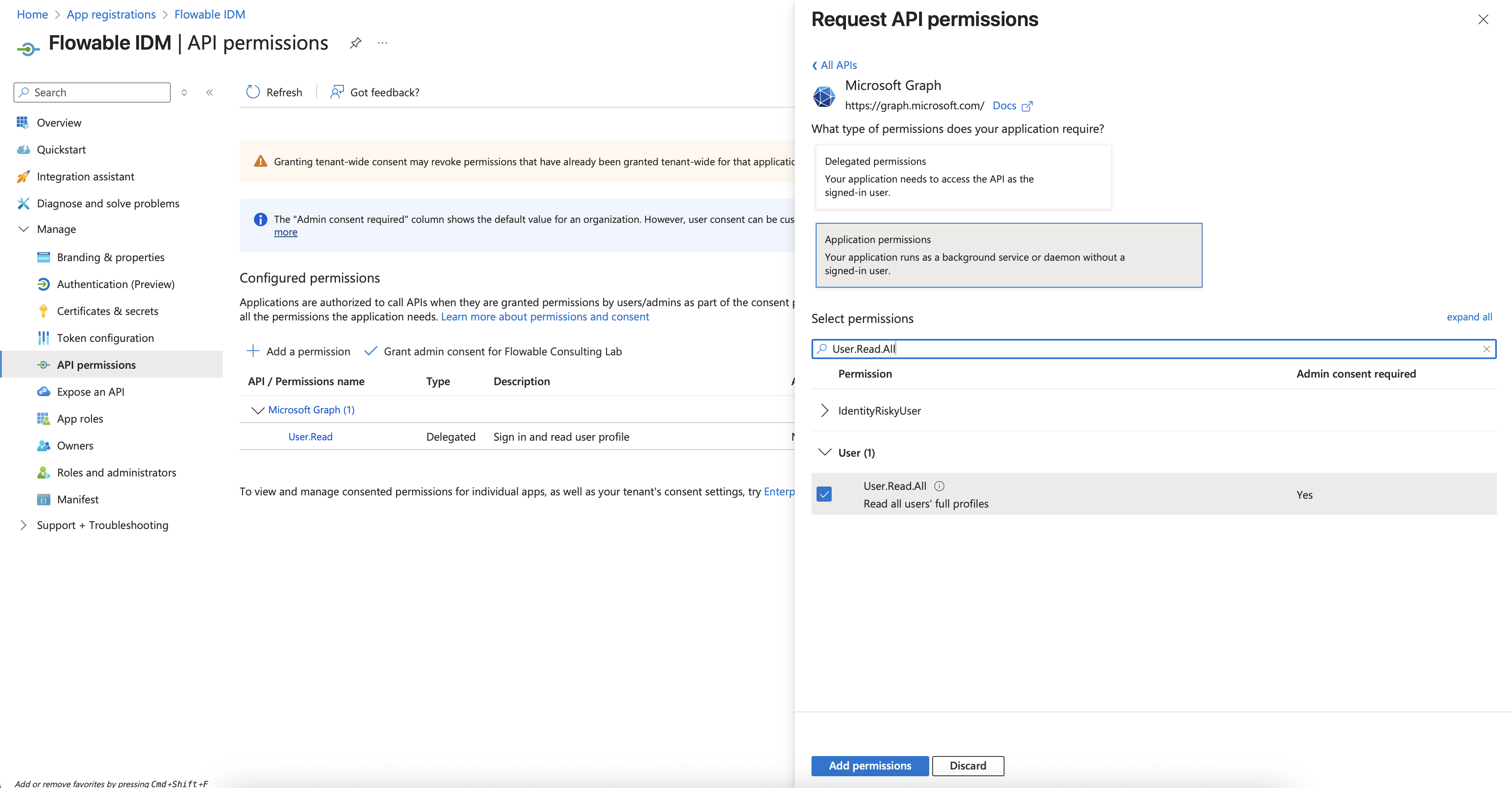
- Click Add a permission and select the Microsoft Graph API. Choose to create Application permissions.
- Search for User.Read.All and check this permission in the User section.
- Search for Group.Read.All and check this permission in the Group section.
- Click on Add permissions.
- The existing User.Read delegated permission can be removed by clicking the three dots on the entry and then Remove permission. Confirm.
- Grant the 2 new permissions admin consent by clicking Grand Admin Consent for... in the table toolbar. Confirm.
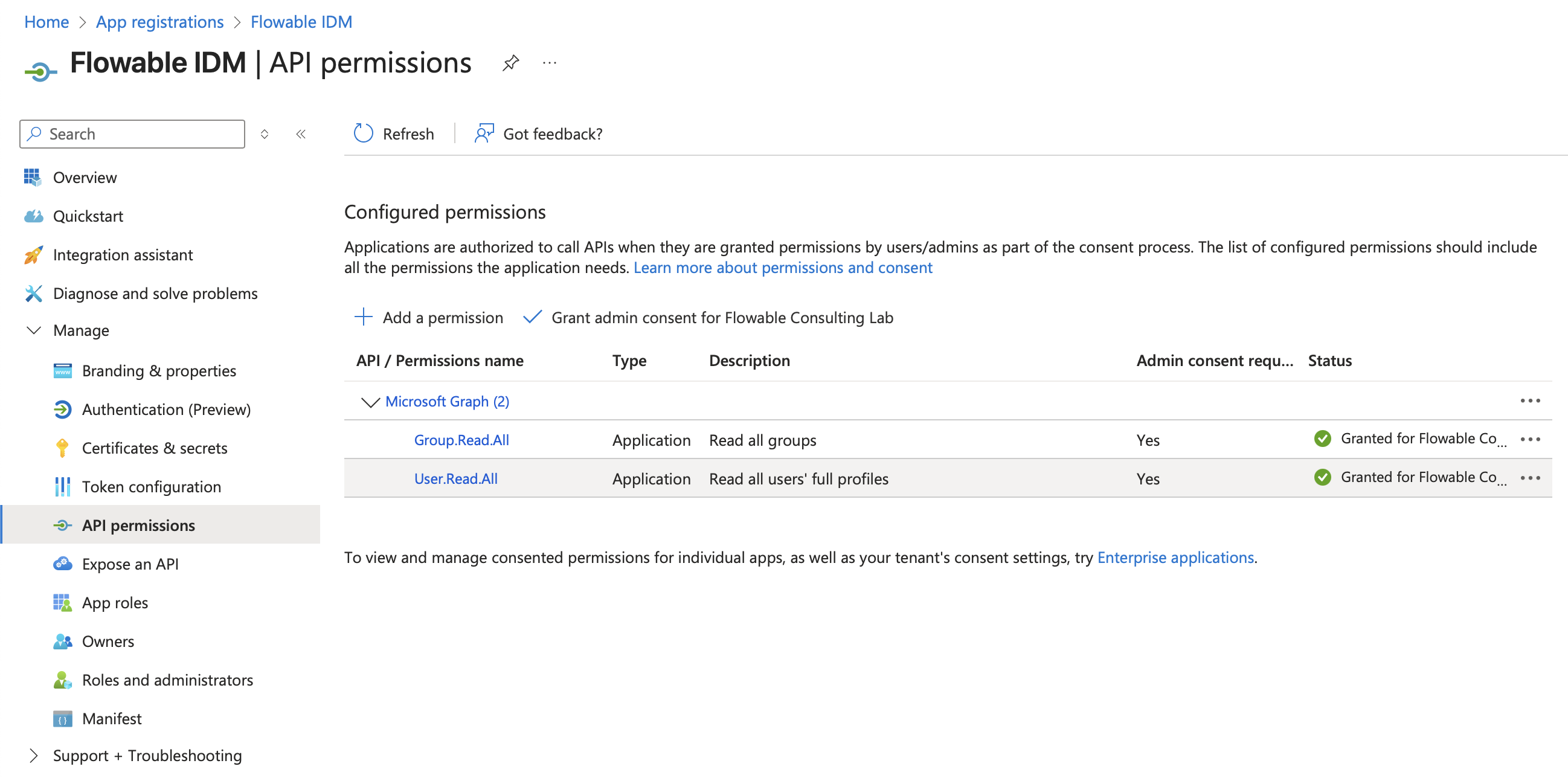
- Copy the Client ID and Tenant ID from the Overview panel on the left side. You will need them for the Flowable IDM Configuration.
Configuring Design
The Client ID, Client Secret, and Tenant ID can be found in the App Registration. To enable and configure the Design IDM for Microsoft Entra ID, the following minimal property-set should be set:
flowable.design.idm.service-type=microsoft-graph

# Configures the Spring Security OAuth2 client registration for Microsoft Entra ID
spring.security.oauth2.client.registration.ms-graph.client-id=<Client ID>
spring.security.oauth2.client.registration.ms-graph.client-secret=<Client Secret>
spring.security.oauth2.client.registration.ms-graph.scope=https://graph.microsoft.com/.default
spring.security.oauth2.client.registration.ms-graph.authorization-grant-type=client_credentials
spring.security.oauth2.client.provider.ms-graph.issuer-uri=https://login.microsoftonline.com/<tenantId>/v2.0

# This should be the Spring Security OAuth2 Client Registration ID used above.
flowable.design.idm.microsoft-graph.client.registration-id=ms-graph
Optionally, the following properties are supported to configure filtering and mapping of Entra ID fields to Design IDM properties. Consider the appropriate default values if the properties are not set.
# Group specific Entra properties
flowable.design.idm.microsoft-graph.group.query.default-filter=(startsWith(displayName, 'flowable-'))
flowable.design.idm.microsoft-graph.group.query.value-group.flowableUser=<Group Object ID>
flowable.design.idm.microsoft-graph.group.query.value-group.someOtherGroup=<Group Object ID>
flowable.design.idm.microsoft-graph.group.mappings.key=id
flowable.design.idm.microsoft-graph.group.mappings.name=displayName
flowable.design.idm.microsoft-graph.group.mappings.type=groupType

# User specific Entra properties
flowable.design.idm.microsoft-graph.user.query.base-group=<Group Object ID>
flowable.design.idm.microsoft-graph.user.query.default-filter=(userType eq 'test')
flowable.design.idm.microsoft-graph.user.mappings.id=userPrincipalName
flowable.design.idm.microsoft-graph.user.mappings.first-name=givenName
flowable.design.idm.microsoft-graph.user.mappings.last-name=surname
flowable.design.idm.microsoft-graph.user.mappings.display-name=displayName
flowable.design.idm.microsoft-graph.user.mappings.email=mail

# Tenant mappings for user from Entra
flowable.design.idm.microsoft-graph.user.mappings.tenant-id=location
flowable.design.idm.microsoft-graph.user.mappings.default-tenant-id=Switzerland
flowable.design.idm.microsoft-graph.user.mappings.value-tenant-id.BRN=Switzerland
flowable.design.idm.microsoft-graph.user.mappings.value-tenant-id.ZRH=Switzerland
flowable.design.idm.microsoft-graph.user.mappings.value-tenant-id.VLC=Spain

# Tenant mappings for group from Entra
flowable.design.idm.microsoft-graph.group.mappings.tenantId=company
flowable.design.idm.microsoft-graph.group.mappings.default-tenant-id=Switzerland
flowable.design.idm.microsoft-graph.group.mappings.value-tenant-id.BERN=Switzerland
flowable.design.idm.microsoft-graph.group.mappings.value-tenant-id.ZURICH=Switzerland
flowable.design.idm.microsoft-graph.group.mappings.value-tenant-id.VALENCIA=Spain
There are multiple groups of properties that can be used to configure different aspects of the Entra support. Here we are going to explain what every property does.
noteThe default configuration uses the userPrincipalName as an identifier for the user.
This means that the OAuth2 Authentication should be configured to use the email for the username attributes.
e.g.
spring.security.oauth2.client.provider.<providerId>.user-name-attribute=email
Communication with Microsoft Entra ID
This group of properties is for the connection and communication to the LDAP Server.
| Property | Description | Value |
|---|---|---|
| spring.security.oauth2.client.registration.ms-graph.client-id | The App Registration Client ID | |
| spring.security.oauth2.client.registration.ms-graph.client-secret | The App Registration Client Secret | |
| spring.security.oauth2.client.registration.ms-graph.scope | The scope to use when requesting an access token | https://graph.microsoft.com/.default |
| spring.security.oauth2.client.registration.ms-graph.authorization-grant-type | The OAuth2 authorization grant type | client_credentials |
| spring.security.oauth2.client.provider.ms-graph.issuer-uri | The Microsoft Issuer URI | https://login.microsoftonline.com/{tenantId}/v2.0 |
| flowable.design.idm.microsoft-graph.client.registration-id=ms-graph | The Spring Security Client Registration ID | ms-graph |
Flowable Specific Properties
The main property to instruct Flowable to use Microsoft Entra ID is flowable.design.idm.service-type=microsoft-graph.
This makes sure that Design will use the IDM Identity Service.
User Properties
The following properties are used when the Design Identity Service queries for users.
| Property | Description | Value |
|---|---|---|
| flowable.design.idm.microsoft-graph.user.query.base-group | When configured Design will only return transitive members of this group | |
| flowable.design.idm.microsoft-graph.user.query.default-filter | The default Microsoft Graph filter that should be applied to all user queries |
The following properties are used when the Design Identity Service maps the Microsoft Graph User into a Design User. This the first value of each mapping is also used to perform sorting if sorting is enabled.
| Property | Description | Value |
|---|---|---|
| flowable.design.idm.microsoft-graph.user.mappings.id | Entra attribute for the user id | userPrincipalName |
| flowable.design.idm.microsoft-graph.user.mappings.first-name | Entra attribute for the first name of the user | givenName |
| flowable.design.idm.microsoft-graph.user.mappings.last-name | Entra attribute for the last name of the user | surname |
| flowable.design.idm.microsoft-graph.user.mappings.display-name | Entra attribute for the display name of the user | displayName |
| flowable.design.idm.microsoft-graph.user.mappings.email | Entra attribute for the email of the user |
All the properties above except id can be specified as a comma-separated list.
The value for the id property should either be userPrincipalName or id.
This means that the first attribute that is not empty from the LDAP response would be used.
e.g.
When flowable.design.idm.microsoft-graph.user.mappings.display-name=displayName,name
the display name of the user is mapped from the Entra attribute displayName
if it is not empty, otherwise from the name attribute.
Tenant mapping
It is also possible to map the user tenant id from an Entra attribute by using the appropriate mapping property. However, in most cases those properties are not in Entra and somehow existing values from Entra need to be mapped into the appropriate Flowable values.
e.g.
We want to use the Entra location attribute to map into the appropriate tenant. In Entra we have the following locations:
- BRN - belongs to tenant Switzerland
- ZRH - belongs to tenant Switzerland
- VLC - belongs to tenant Spain
- MAD - belongs to tenant Spain
To configure that, we are going to use the following properties
flowable.design.idm.microsoft-graph.user.mappings.tenant-id=location
flowable.design.idm.microsoft-graph.user.mappings.default-tenant-id=Switzerland
flowable.design.idm.microsoft-graph.user.mappings.value-tenant-id.BRN=Switzerland
flowable.design.idm.microsoft-graph.user.mappings.value-tenant-id.ZRH=Switzerland
flowable.design.idm.microsoft-graph.user.mappings.value-tenant-id.VLC=Spain
flowable.design.idm.microsoft-graph.user.mappings.value-tenant-id.MAD=Spain
The flowable.design.idm.microsoft-graph.user.mappings.tenant-id property is used to determine which Entra attribute should be used to get the tenant value.
In our example this would be location.
The flowable.design.idm.microsoft-graph.user.mappings.default-tenant-id property is used to determine
the default tenant id that is used in case the user has no location set.
In our example the default tenant would be Switzerland
The flowable.design.idm.microsoft-graph.user.mappings.value-tenant-id.<value> property, where <value>
is any value that you have in your location Entra attribute,
is used to provide the mapping between your Entra value and the Flowable value.
In our example we are mapping BRN to Switzerland, VLC to Spain, etc.
Paging
The Microsoft Entra ID Service does not support paging, at least not in the way that we can get results within a page that we want to. The pagination is implemented using a skip token approach and querying for the next page. We are doing the best effort implementation to get the requested page. However, we advise not to use infinite scrolling or paging with the REST API and instead rely on additional filtering.
Sorting
The Microsoft Graph API does not support sorting for the same attributes that Flowable supports. Therefore, it is currently only possible to sort on user id and display name.
Group Properties
The following properties are used when the Design Identity Service queries for groups.
| Property | Description | Value |
|---|---|---|
| flowable.design.idm.microsoft-graph.group.query.default-filter | The default Microsoft Graph filters that should be applied to all group queries | (startsWith(displayName, 'flowable-')) |
In the example above, we are only querying for groups that start with the prefix flowable-.
The following properties are used when the Design Identity Service maps the Entra attributes into a Flowable Group.
| Property | Description | Value |
|---|---|---|
| flowable.design.idm.microsoft-graph.group.mappings.key | Entra attribute for the key of the group. We advise not to change the default value | id |
| flowable.design.idm.microsoft-graph.group.mappings.name | Entra attribute for the name of the group | displayName |
All the properties can be specified as a comma-separated list. This means that the first attribute that is not empty from the Entra response would be used.
When flowable.design.idm.microsoft-graph.group.mappings.key is not set then id would be used both for it.
Group Key mapping
Sometimes it is not possible to create a new group in Entra and you would like to use an existing group, but name it differently in Flowable.
e.g., you would like to use the group designModeler and designAdministrator and use those groups in design to define permissions for workspaces.
The property flowable.design.idm.microsoft-graph.group.query.value-group.<groupKey>=<Azure Group Object Id> can be used to map the group key to the Azure Group Object Id.
Tenant mapping
It is also possible to map the group tenant id from an Entra attribute by using the appropriate mapping property. However, in most cases the tenant is not in Entra and somehow existing values from Entra need to be mapped into the appropriate Flowable values.
e.g.
We want to use the Entra loc attribute to map into the appropriate tenant.
In LDAP we have the following locations:
- BERN - belongs to tenant Switzerland
- ZURICH - belongs to tenant Switzerland
- VALENCIA - belongs to tenant Spain
- MADRID - belongs to tenant Spain
To configure that we are going to use the following properties
flowable.design.idm.microsoft-graph.group.mappings.tenant-id=loc
flowable.design.idm.microsoft-graph.group.mappings.default-tenant-id=Switzerland
flowable.design.idm.microsoft-graph.group.mappings.value-tenant-id.BERN=Switzerland
flowable.design.idm.microsoft-graph.group.mappings.value-tenant-id.ZURICH=Switzerland
flowable.design.idm.microsoft-graph.group.mappings.value-tenant-id.VALENCIA=Spain
flowable.design.idm.microsoft-graph.group.mappings.value-tenant-id.MADRID=Spain
The flowable.design.idm.microsoft-graph.group.mappings.tenant-id property is used to determine which Entra attribute should be used to get the tenant value.
In our example this would be loc.
The flowable.design.idm.microsoft-graph.group.mappings.default-tenant-id property is used to determine
the default tenant id that is used in case the group has no loc set.
In our example the default tenant would be Switzerland
The flowable.design.idm.microsoft-graph.group.mappings.value-tenant-id.<value> property, where <value>
is any value that you have in your loc LDAP attribute,
is used to provide the mapping between your LDAP value and the Flowable value.
In our example we are mapping BERN to Switzerland, VALENCIA to Spain, etc.
Paging
The Microsoft Entra ID Service does not support paging, at least not in the way that we can get results within a page that we want to. The pagination is implemented using a skip token approach and querying for the next page. We are doing the best effort implementation to get the requested page. However, we advise not using infinite scrolling or paging with the REST API and instead rely on additional filtering.
Sorting
The Microsoft Graph API does not support sorting for the same attributes that Flowable supports. Therefore, it is currently only possible to sort on user id and display name.
Flowable Design Administration User
Out of the box Flowable Design creates one user with the username admin and password test.
The password can be customized (only during first startup of Flowable Design) by setting the following property.
flowable.design.user-store.password=<your custom password>
Starting Tomcat
You can now start Tomcat by running bin/catalina.sh (bin/catalina.bat on Windows).
Alternatively, you can run bin/catalina.sh run to have it in the foreground.
You should now be able to access the Flowable Design application (if running on localhost):
You can log in with the user admin and password test (or custom password if set). You need to login in every application as the Flowable applications use different user stores by default.
Using a Different Database
The Flowable applications are Spring Boot applications and are
configured in a standard Spring Boot way.
This means that the database can be configured by setting the
following properties to the application.properties file previously mentioned.
spring.datasource.url=<jdbc URL>
spring.datasource.driver-class-name=<jdbc driver class name>
spring.datasource.username=<username>
spring.datasource.password=<password>
The application.properties file contains examples for the compatible databases:
-
H2
-
MySQL
-
MariaDB v3.11.0+
-
PostgreSQL
-
Oracle
-
Microsoft SQL Server
-
DB2
The Flowable applications do not ship with the JDBC drivers for databases
other than H2. Therefore you need to download the appropriate JDBC driver
and copy the jar into the Tomcat lib folder.
The Flowable applications create the required database and tables when they start. The database user needs database schema read-write permissions (unless the schema is created manually, see further).
For productive usage, Flowable Design shall be backed with a productive database. The usage of a H2 database (file-based or in-memory) is not for productive usage, especially with high usage and concurrent users working on the same data.
It is also possible to disable the schema creation or only perform schema validation.
For this the property flowable.design.database-schema-udpate needs to be set.
The possible values for it are:
true- Default value. A check is performed, and an update of the schema is performed if it is necessary.false- Checks the version of the DB schema against the library throws an exception if the versions don't match.ignore- Does nothing. No schema creation, no schema version check.
Deploying to Different Environments
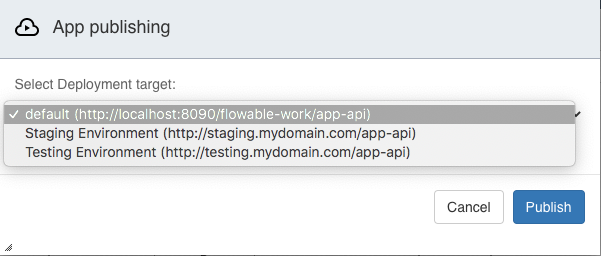
It's possible to define different environments to publish applications to, which allows one Flowable Design instance to deploy to various Flowable runtime systems.
In the configuration, deployment configurations can be added using the flowable.design.deployment.<id> pattern (multiple are possible). For example:
flowable.design.deployment.staging.name=Staging Environment
flowable.design.deployment.staging.deployment-api-url=http://staging.mydomain.com/app-api
flowable.design.deployment.staging.undeployment-api-url=http://staging.mydomain.com//platform-api/app-deployments

flowable.design.deployment.testing.name=Testing Environment
flowable.design.deployment.testing.deployment-api-url=http://testing.mydomain.com/app-api
flowable.design.deployment.testing.undeployment-api-url=http://testing.mydomain.com//platform-api/app-deployments
flowable.design.deployment.testing.publish-request-required=true
2026.1.0+ The publish-request-required property (default false) controls whether a deployment target can be published to directly or only through an approved publish request. When set to true, publishing to that target creates a publish request that an approver has to resolve before the app is deployed.
When publishing an application, in Flowable Design the target environment can now be selected:
Flowable Design in Cluster Mode
You can setup multiple Flowable Design instances in a cluster.
This requires setting up two or more instances of Flowable Design, and then adding a loadbalancer in front of them.
All Flowable Design instances in the cluster need to be configured to point to the same database.
Flowable Design has been architected in such a way that the REST api can handle any request. The load balancer does not need to have sticky sessions enabled.
Enable Model Locking
Model locking is a feature that's useful when working with multiple people on the same model(s), and avoids that users can accidentally overwrite changes from somebody else.
Model locking is disabled by default. It can be enabled by setting the following property:
flowable.design.model-locking.enabled=true
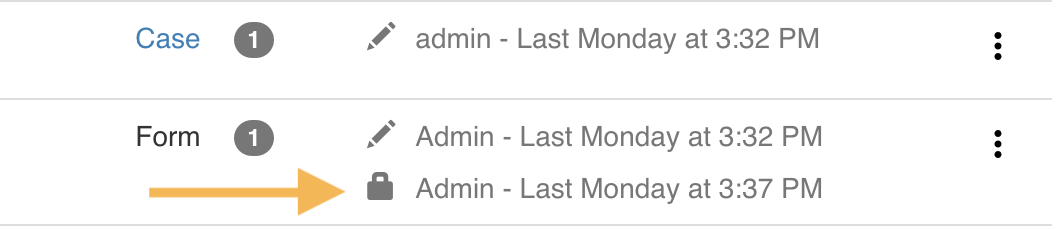
When enabled, users can lock any model. In the UI this will be visible by lock icons and visual cues on the screen.
Additionally: if newly created models should be locked immediately after creation, the following property needs to be set:
flowable.design.model-locking.auto-lock-on-create=true
Development Environment Setup
This section is relevant when you want to build your own version of Flowable Design, instead of using the out-of-the-box application.
Flowable Design is based on Spring Boot and therefore requires it as a base for any development environment. The easiest way to setup a Flowable development project is to first generate a Spring Boot Project by using the Spring Initializr.
You can import the generated project into the IDE of your choice (like IntelliJ IDEA or Eclipse).
Flowable Design Dependencies
Flowable Design utilizes multiple Maven dependencies to access the required Flowable services.
Add the following dependencies as children of the existing <dependencies> tag
of the pom.xml file to set up Flowable Design:
<dependency>
    <groupId>com.flowable.design</groupId>
    <artifactId>flowable-spring-boot-starter-design</artifactId>
    <version>${com.flowable.design.version}</version>
</dependency>

<!-- Optional Dependency to activate the Actuator Endpoints -->
<dependency>
    <groupId>com.flowable.design</groupId>
    <artifactId>flowable-spring-boot-starter-design-actuator</artifactId>
    <version>${com.flowable.design.version}</version>
</dependency>
The maven property com.flowable.design.version can be configured to the Flowable Design version (e. g. 3.x.y).
Flowable Platform Palette Dependencies
By default it's advised to add the platform palette to Flowable Design by adding the following dependency.
<dependency>
    <groupId>com.flowable.platform</groupId>
    <artifactId>flowable-platform-palette</artifactId>
    <version>${com.flowable.platform.version}</version>
</dependency>
Flowable Chat Palettes
When using Flowable Design with Flowable chat capabilities you can add (additionally to the palettes dependencies referred above) the following palette configuration by adding following dependency.
<dependency>
    <groupId>com.flowable.engage</groupId>
    <artifactId>flowable-engage-palette</artifactId>
    <version>${com.flowable.platform.version}</version>
</dependency>
Tokens
Enable the feature access-token.signing-secret
Add the following dependencies as children of the existing <dependencies> tag
of the pom.xml file to set up Flowable Design Tokens functionality:
<dependency>
    <groupId>org.springframework.boot</groupId>
    <artifactId>spring-boot-starter-oauth2-client</artifactId>
</dependency>
<dependency>
    <groupId>org.springframework.boot</groupId>
    <artifactId>spring-boot-starter-oauth2-resource-server</artifactId>
</dependency>
<dependency>
    <groupId>org.springframework.security</groupId>
    <artifactId>spring-security-rsa</artifactId>
</dependency>
Git connectivity
2026.1.0+To enable Git connectivity, add the following starter to your Design application:
<dependency>
    <groupId>com.flowable.design</groupId>
    <artifactId>flowable-spring-boot-starter-design-git</artifactId>
</dependency>
Security Configuration
In a custom project a custom SecurityConfiguration is required to be configured.
Find here an example of a possible SecurityConfiguration implementation class that uses Basic Authentication.
import jakarta.servlet.DispatcherType;

import org.springframework.beans.factory.ObjectProvider;
import org.springframework.context.annotation.Bean;
import org.springframework.context.annotation.Configuration;
import org.springframework.core.annotation.Order;
import org.springframework.http.HttpStatus;
import org.springframework.security.config.Customizer;
import org.springframework.security.config.annotation.web.builders.HttpSecurity;
import org.springframework.security.config.annotation.web.configuration.EnableWebSecurity;
import org.springframework.security.config.http.SessionCreationPolicy;
import org.springframework.security.web.SecurityFilterChain;
import org.springframework.security.web.authentication.HttpStatusEntryPoint;
import org.springframework.security.web.util.matcher.AnyRequestMatcher;
import org.springframework.security.web.util.matcher.DispatcherTypeRequestMatcher;

import com.flowable.autoconfigure.design.security.DesignHttpSecurityCustomizer;
import com.flowable.autoconfigure.design.security.servlet.DesignPathRequest;
import com.flowable.design.security.spring.web.authentication.AjaxAuthenticationFailureHandler;
import com.flowable.design.security.spring.web.authentication.AjaxAuthenticationSuccessHandler;

@Configuration(proxyBeanMethods = false)
@EnableWebSecurity
public class SecurityConfiguration {

    @Bean
    @Order(10)
    public SecurityFilterChain basicDefaultSecurity(HttpSecurity http, ObjectProvider<DesignHttpSecurityCustomizer> httpSecurityCustomizers) throws Exception {
        for (DesignHttpSecurityCustomizer customizer : httpSecurityCustomizers.orderedStream().toList()) {
            customizer.customize(http);
        }

        http
                .sessionManagement(sessionManagement -> sessionManagement.sessionCreationPolicy(SessionCreationPolicy.STATELESS));
        http
                .logout(logout -> logout
                        .logoutUrl("/auth/logout")
                        .logoutSuccessUrl("/")
                );

        http
                .exceptionHandling(exceptionHandling -> exceptionHandling
                        .defaultAuthenticationEntryPointFor((request, response, authException) -> {}, new DispatcherTypeRequestMatcher(DispatcherType.ERROR))
                        .defaultAuthenticationEntryPointFor(new HttpStatusEntryPoint(HttpStatus.UNAUTHORIZED), AnyRequestMatcher.INSTANCE))
                .formLogin(formLogin -> formLogin
                        .loginProcessingUrl("/auth/login")
                        .successHandler(new AjaxAuthenticationSuccessHandler())
                        .failureHandler(new AjaxAuthenticationFailureHandler())
                )
                .authorizeHttpRequests(configurer -> configurer
                        .requestMatchers(DesignPathRequest.toStaticResources().atCommonLocations()).permitAll()
                        .anyRequest().authenticated()
                )
                .httpBasic(Customizer.withDefaults());

        return http.build();
    }
}
Properties
All available Design specific properties can be found in here