Create a Custom Backend Task
Introduction
Flowable provides a wide variety of out-of-the-box tasks which you can use to model your processes. But sometimes there are custom elements which are specific to your domain or business. Since these tasks are not provided by Flowable, you can extend the set of out-of-the-box tasks with your own.
This guide describes how you can create your own backend tasks, use them in Flowable Design, and execute them in Flowable Work/Engage. A custom service task implementation is called a palette element or stencil in Flowable Design. A palette is the name for all steps available for a specific model type (for example, the process or BPMN palette).
As an example, we are going to create a palette element which calculates the addition of two numbers. Note that this could just be done with an expression ${a + b} — this guide is rather to demonstrate the principle for more complex programming or integration logic.
The code for this guide can be found at GitHub.
Prerequisites
Before starting, ensure you have:
- Flowable Design running (for modeling the palette and process)
- Flowable Work running (for executing the process)
- A Java project set up with the Flowable Work dependencies
Step 1: Create a Process Model
Start by creating a process model in Flowable Design that will use the custom task. Create a simple process with a user task to gather input data, followed by a service task (which will later be replaced by the custom task), and an end event. Publish the app to Flowable Work to verify the basic flow works.
Step 2: Create the Palette File
The palette file defines the custom task and its properties. Flowable Design looks on the classpath location com/flowable/config/custom/palette for custom palette configuration files. Create a .palette file in this directory (e.g., demo.palette):
{
  "$schema": "https://developer-docs.flowable.com/schemas/palette.json",
  "Palette-Id": "demo-palette-extension",
  "title": "Demo Palette Extension",
  "patchPalettes": ["flowable-work-process-palette", "flowable-work-case-palette"],
  "resourceBundles": ["com/flowable/config/custom/palette/translation"],
  "groups": {
    "math": {
      "index": 10
    }
  },
  "stencils": [
    {
      "id": "AdditionServiceTask",
      "superId": "ServiceTask",
      "groups": [
        "math"
      ],
      "properties": [
        {
          "id": "input-a",
          "category": "commonDetails",
          "type": "SimpleTextExpression",
          "index": 10,
          "optional": false
        },
        {
          "id": "input-b",
          "category": "commonDetails",
          "type": "SimpleTextExpression",
          "index": 20,
          "optional": false
        },
        {
          "id": "output",
          "category": "commonDetails",
          "type": "SimpleText",
          "optional": false,
          "index": 30,
          "variableExtractor": {
            "type": "simple"
          }
        },
        {
          "id": "delegateexpression",
          "value": "${mathAPlusB}",
          "visible": false
        },
        {
          "id": "expression",
          "visible": false
        },
        {
          "id": "classfields",
          "visible": false
        },
        {
          "id": "class",
          "visible": false
        },
        {
          "id": "servicetasktriggerable",
          "visible": false
        },
        {
          "id": "resultvariable",
          "visible": false
        },
        {
          "id": "includeinhistory",
          "visible": false
        },
        {
          "id": "servicetaskUseLocalScopeForResultVariable",
          "visible": false
        }
      ]
    }
  ]
}
Key elements of the palette file:
patchPalettes: Specifies which palettes to extend. Useflowable-work-process-palettefor BPMN andflowable-work-case-palettefor CMMN, or both.id: The unique identifier for the task (AdditionServiceTask).superId: Specifies the parent stencil to inherit from. Since this is a backend task, we useServiceTask.properties: The custom fields (input-a,input-b,output) with their types.SimpleTextExpressionallows entering static text or JUEL expressions. ThevariableExtractoron the output property adds it to autocomplete suggestions.delegateexpression: The hidden property pointing to the Spring bean (${mathAPlusB}) that implements the logic.- Hidden properties (
visible: false): Hides the default service task fields to keep the UI focused on the custom fields.
Step 3: Add Translations
Create a file com/flowable/config/custom/palette/translation.properties (matching the resourceBundles name with .properties appended):
group.math.title=Math

AdditionServiceTask.title=Addition
AdditionServiceTask.description=Task to add two variables

property.input-a.title=Input A
property.input-a.description=The first input
property.input-b.title=Input B
property.input-b.description=The second input
property.output.title=Output Name
property.output.description=The output variable name
Step 4: Add Custom Icons (Optional)
You can customize the appearance with custom icons by adding these properties to the stencil:
"icon": "../palette-icons?id=component-presentations/palette-icons/add.png",
"bigIcon": "../palette-icons?id=component-presentations/palette-icons/add.svg",
Place the images in com/flowable/config/custom/palette/component-presentations/palette-icons. The add.png should be a 16x16 PNG file, and the add.svg is an SVG image.
Step 5: Restart Design and Use the Task
After adding the palette file, restart Flowable Design to apply the patched palette. The custom task now appears in the palette under the "Math" group.
Replace the generic service task in your process model with the new "Addition" task and configure the input and output fields:
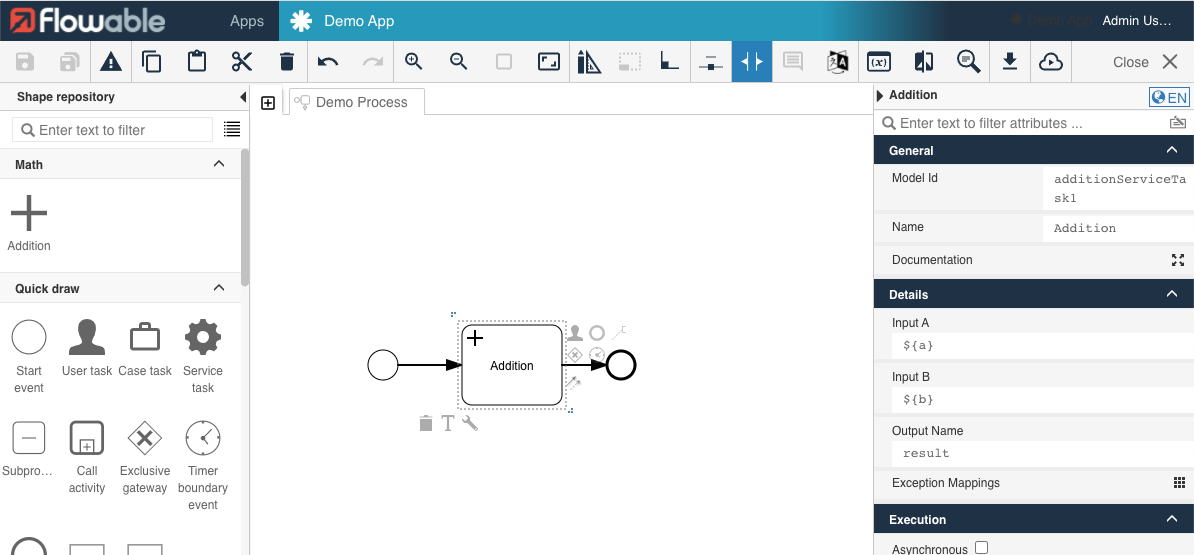
If you publish and run the process at this point, you will see an error because the backend implementation does not exist yet:
Caused by: org.flowable.common.engine.impl.javax.el.PropertyNotFoundException: Cannot resolve identifier 'mathAPlusB'
Step 6: Implement the Task
Create a Spring bean with the name mathAPlusB in the Flowable Work/Engage module. Since it is a delegate expression, it needs to implement JavaDelegate for BPMN and PlanItemJavaDelegate for CMMN. The AbstractPlatformTask class implements both:
package com.flowable.palette.work;

import org.flowable.common.engine.api.variable.VariableContainer;
import org.springframework.stereotype.Service;

import com.flowable.platform.tasks.AbstractPlatformTask;
import com.flowable.platform.tasks.ExtensionElementsContainer;

@Service
public class MathAPlusB extends AbstractPlatformTask {

    @Override
    public void executeTask(VariableContainer variableContainer, ExtensionElementsContainer extensionElementsContainer) {
        int inputA = getExtensionElementValue("input-a", extensionElementsContainer, variableContainer, 0);
        int inputB = getExtensionElementValue("input-b", extensionElementsContainer, variableContainer, 0);
        String output = getStringExtensionElementValue("output", extensionElementsContainer, variableContainer, "r");

        variableContainer.setVariable(output, inputA + inputB);
    }
}
 note
noteEnsure your class is in a package covered by your Spring Boot component scan. This is typically the package of your @SpringBootApplication and all sub-packages.
The helper methods getExtensionElementValue and getStringExtensionElementValue accept:
- The field name as defined in the palette
- The
ExtensionElementsContainerwith the task configuration - The
VariableContainer(common interface betweenDelegateExecutionandPlanItemJavaDelegate) providing access to all process/case variables - A default value if the field is not present
The input-a field resolves the expression ${a} against the current context, giving the actual variable value. The output field provides the variable name where the result is stored.
Step 7: Restart Work and Test
Restart Flowable Work to make the new bean available. Start a new process instance — the custom task now executes successfully and creates a new variable with the sum of the two input values.
Further Reading
- Implement a Custom Service Task for detailed developer documentation
- Palette Customization for advanced palette configuration
- JSON Schema for IDE support in palette files