General Concepts
In Flowable Design, building advanced models is the main goal. Models can be BPMN processes, CMMN cases, DMN rules, Queries, Templates, etc.
All models that logically belong together are grouped in an app. Such an app can be published to a runtime system such as Flowable Work to expose the models to end-users at which point they become a definition of which instances can be started. For example, a BPMN process model becomes a process definition when published and many process instances can be created based on this definition.
Apps can be exported as a zip file and imported in other Flowable Design instances.
 note
noteApps exported from a specific version of Flowable Design can be imported into the same or any subsequent version of the Flowable Design. However, importing apps into older versions of Flowable Design than the one they were exported from is not recommended.
Apps are grouped in workspaces. There's no rule or limit here: workspaces can be used in your organization however you see fit.
When logging in for the first time, you'll see that there is a default workspace generated. Additionally, there also is a system workspace that contains models that are available in any Flowable system (for example the mail event model, representing an incoming email on the email channel).
noteModels from the system workspace are not exported / published with the app.
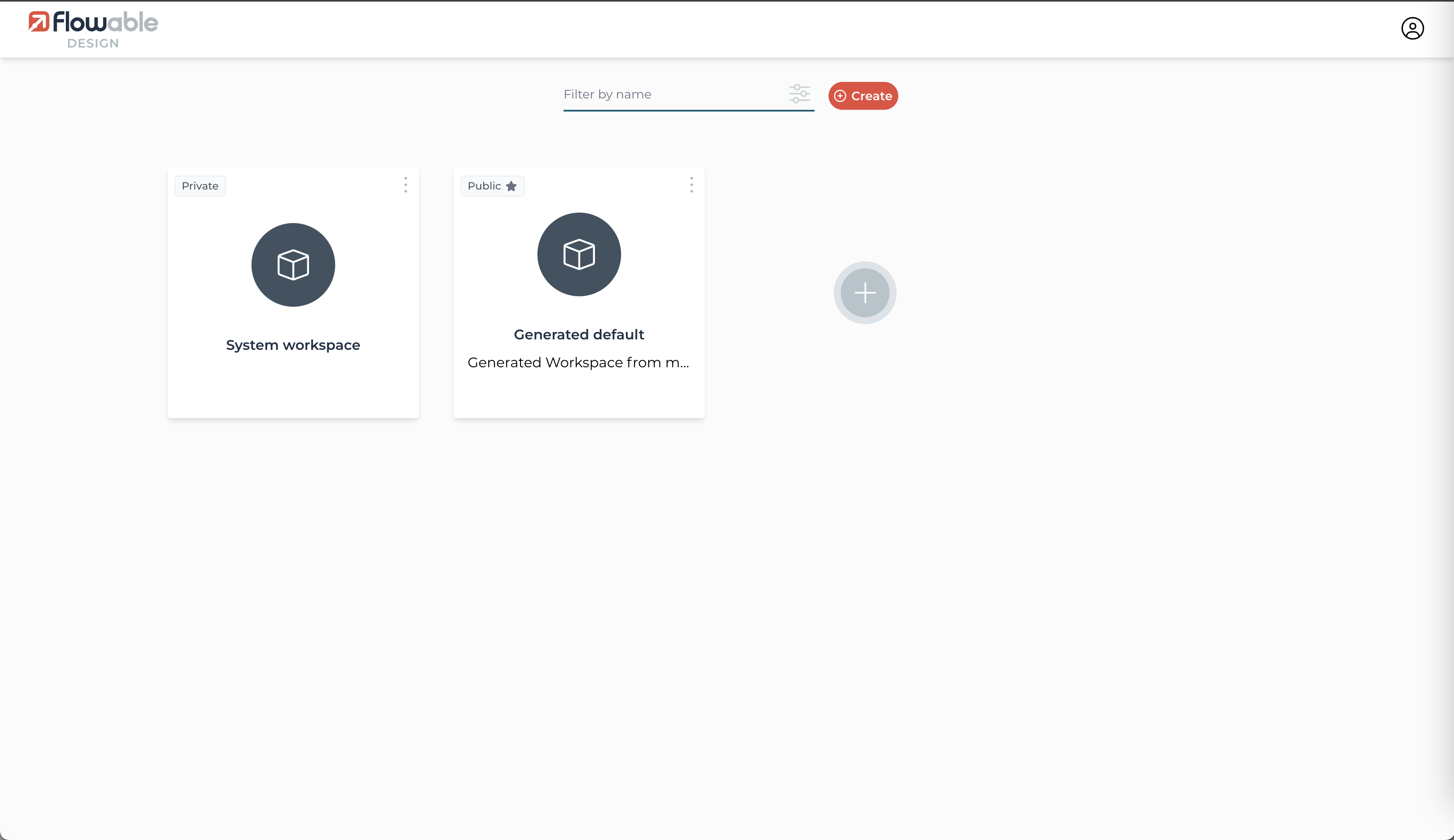
Workspace actions
Once inside a workspace, the 'hamburger icon' in the top-left corner can be clicked to see various options:
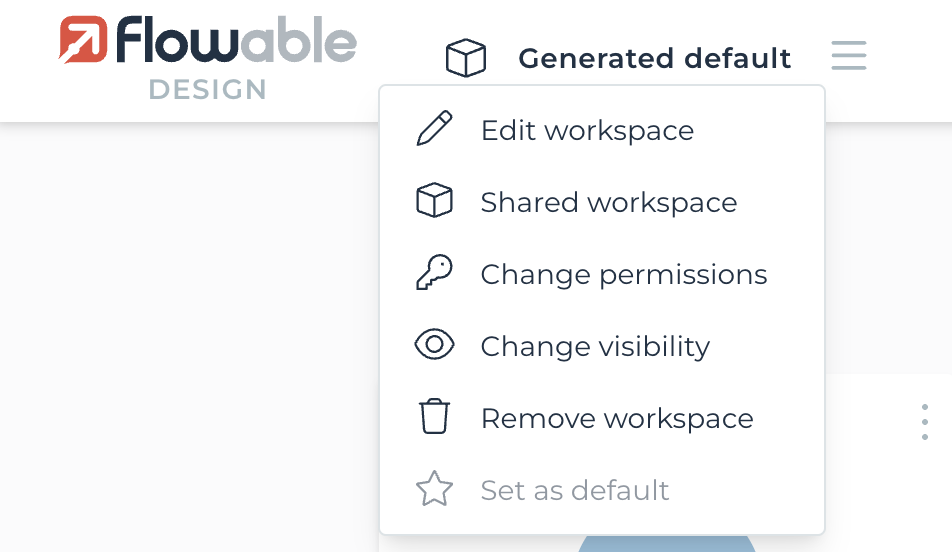
This gives various management options for the workspace.
The "Set as default" action is the only action that is available to all users, the rest of the actions are modifying actions that are only allowed for tenant admins or workspace owners.
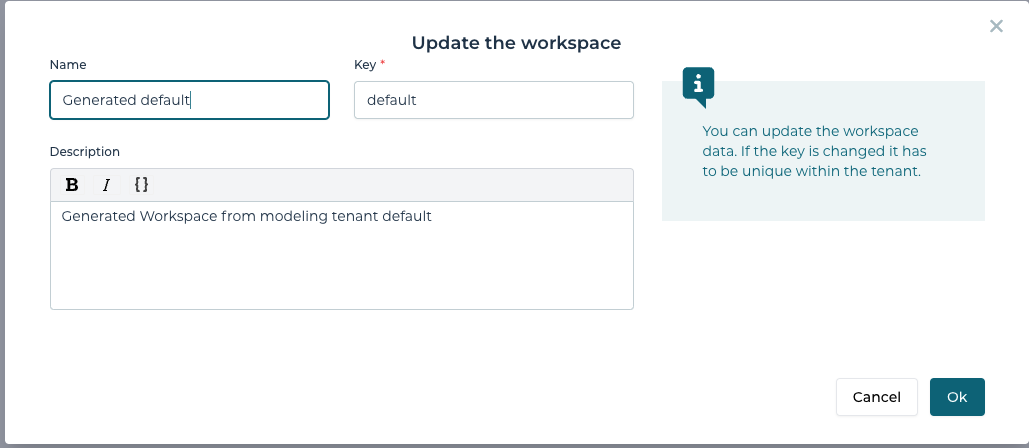
Edit workspace
The name, key and description of the workspace can be changed.
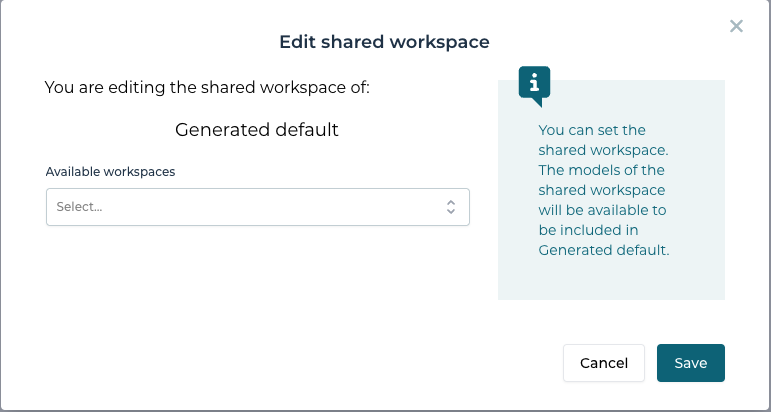
Shared workspace
For each workspace, a shared workspace can be also selected. This is another workspace that contains 'shared models' and will be visible inside the workspace. For example, when working with multiple teams, the shared workspace can contain common models that are reused across departments. The shared workspace can be set for each workspace individually, which means there can be more than one workspace where common models can be shared. This again can be chosen in the best way to work for the way your organization works.
noteA workspace can be selected as a shared workspace if and only if that workspace does not have a shared workspace.
Change permissions
You can change the permissions of a workspace. This allows you to control which users / groups are able to see and access workspace.
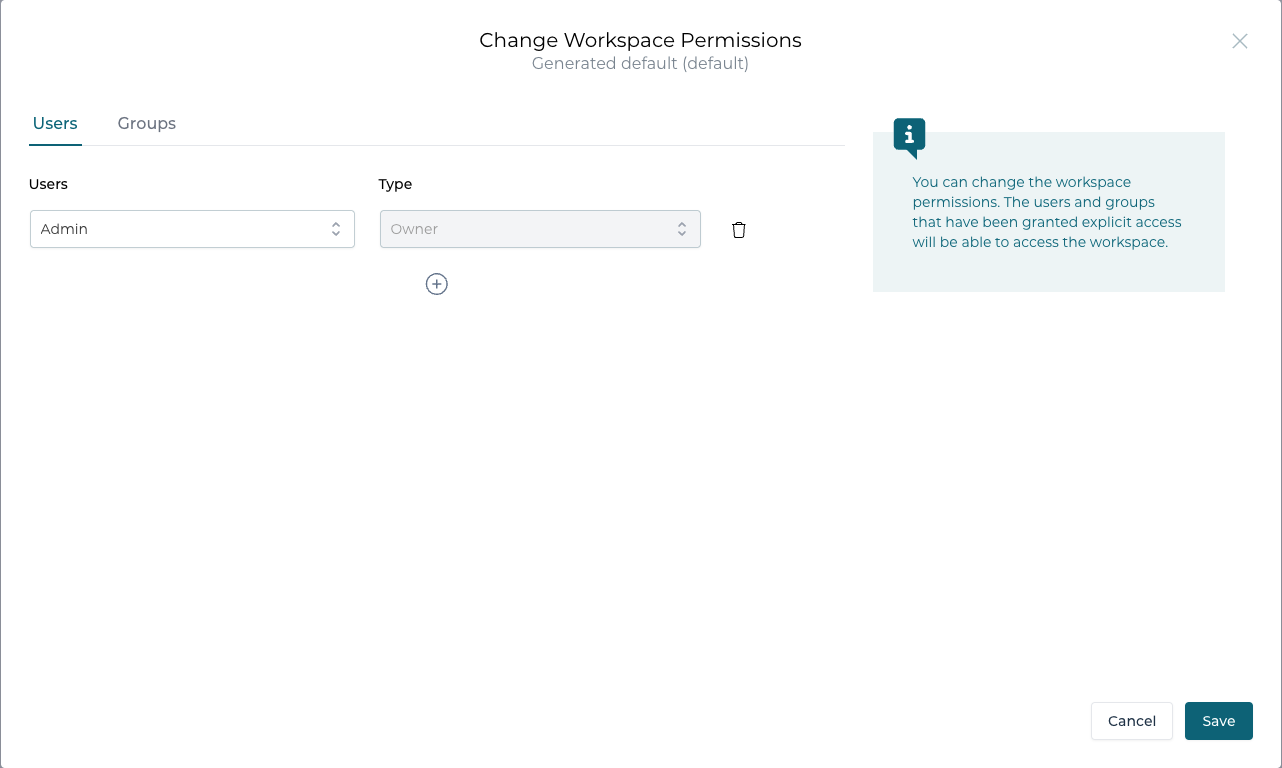
For a public workspace you can only add workspace owners. Workspace owners have the right to perform modifying operations such as edit, change shared workspace, change visibility or remove.
For a private workspace you can assign different roles for the users
- An owner has the right to perform modifying operations
- A modeler has the right to create / edit apps and models
- A reader has a read only rights in the workspace

2026.1.0+ In addition to these built-in roles, any custom roles defined for your tenant can be assigned here as well.
Change visibility
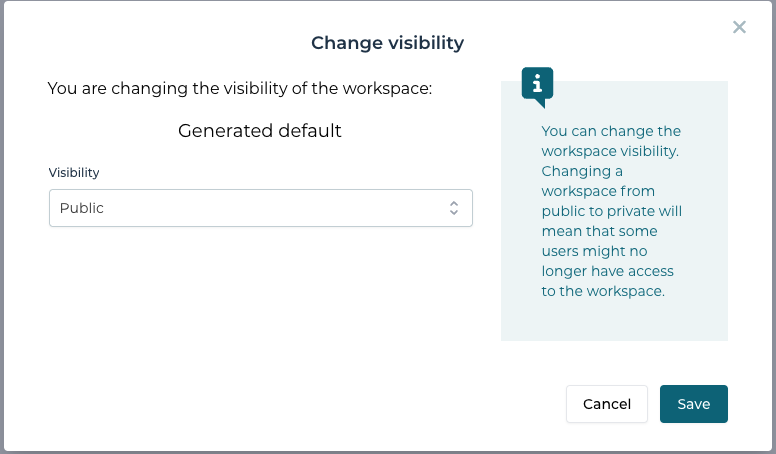
The visibility of the workspace can be changed.
- A private workspace is visible only to the users that have received explicit right to it
- A public workspace is visible to all the users in the tenant
Remove workspace
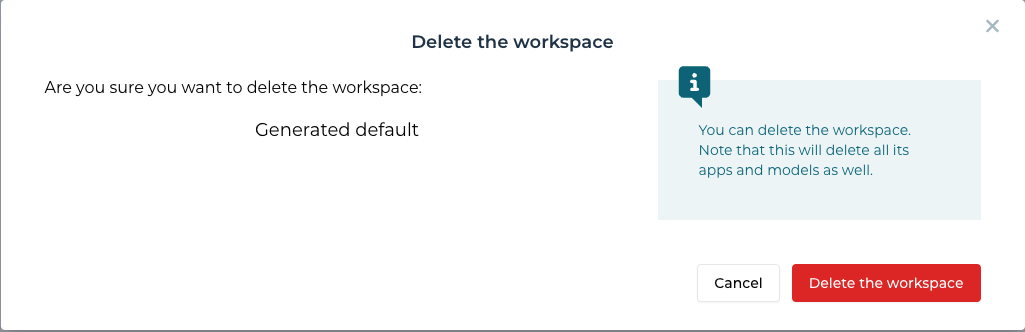
When removing a workspace all the apps and models that are part of that workspace are going to be removed as well.
Set as default
This is action is a personal action for any user. Marking a workspace as a default workspace means that this workspace will automatically be opened when logging in into Flowable Design.
Custom roles
2026.1.0+Next to the built-in roles (owner, modeler, reader and approver), tenant administrators can define their own custom roles with a specific set of permissions. This allows for fine-grained control over what members are allowed to do in workspaces and apps.
Custom roles are managed on the Roles management page, reachable from the profile menu. The page is only available to users with the custom role management privilege. Here you can create, edit and delete the custom roles of your tenant, and for each role select which permissions it grants from the list of available permissions.
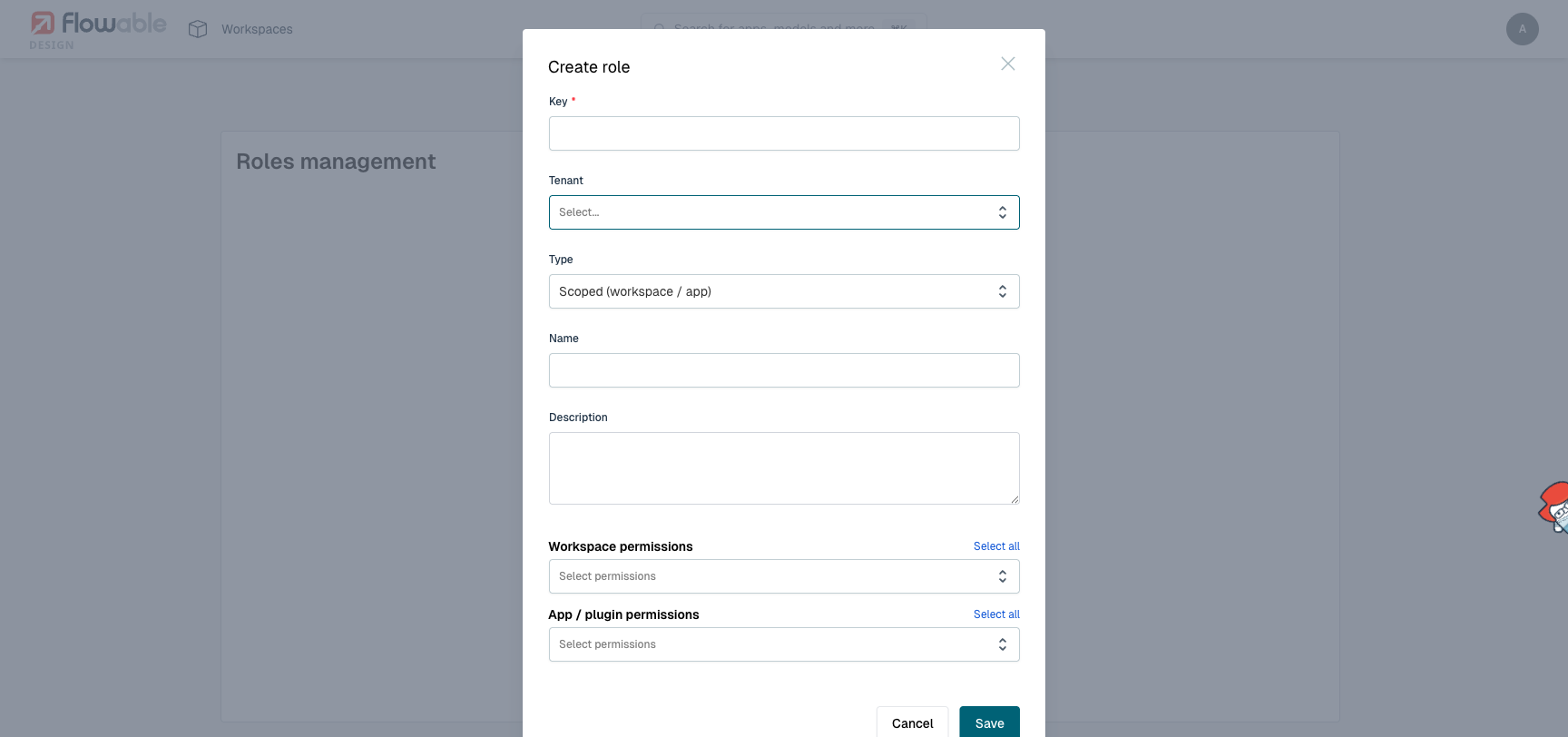
Clicking a role in the list opens its editor, where you can update it and review its assigned permissions.
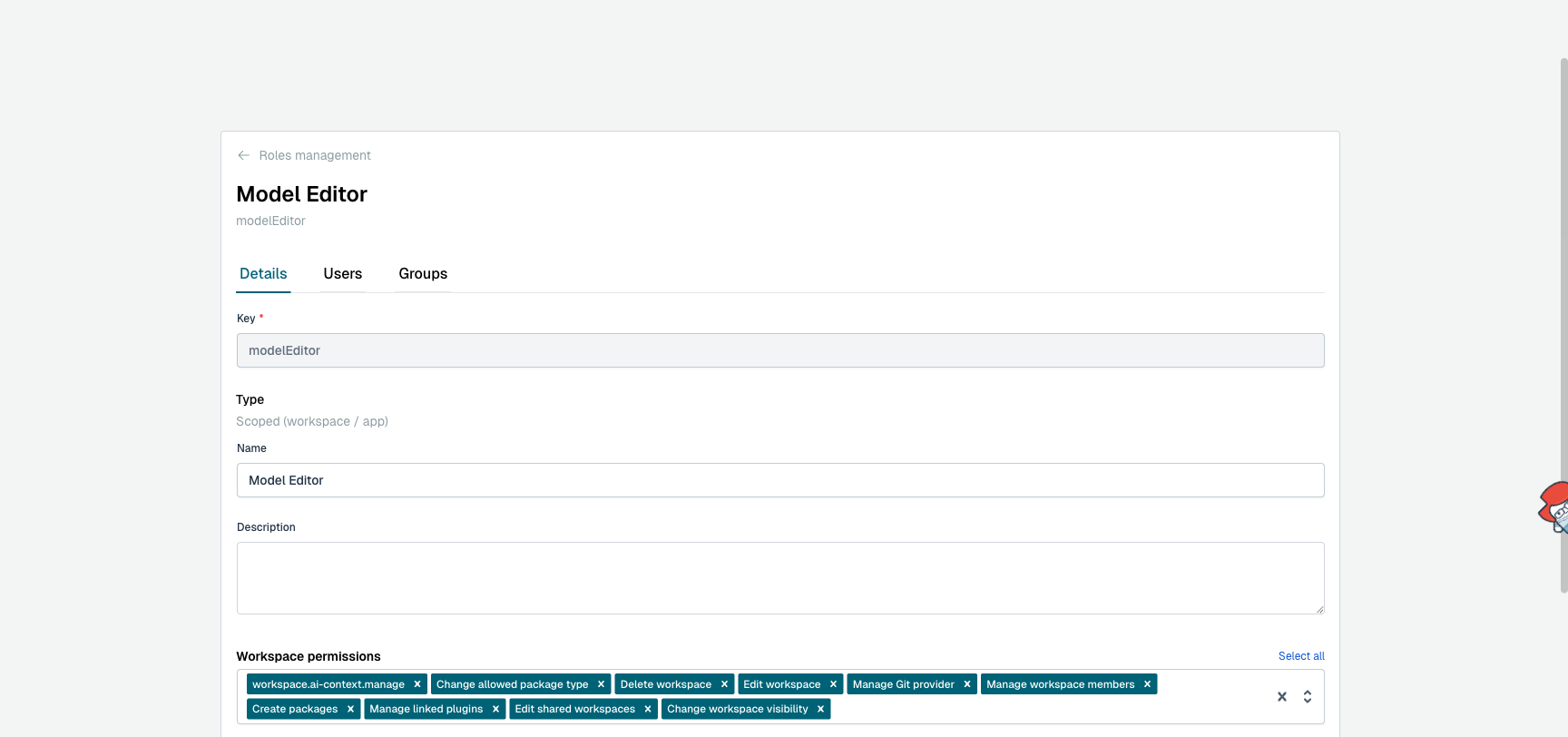
The permissions of a custom role are additive — they are granted on top of the built-in role a member already has.
Role types
A custom role has a type that determines which permissions it can hold and how it is assigned:
- Scoped (workspace / app) — grants the selected workspace and app/plugin permissions. A scoped role is assigned in the workspace or app member dialog, where it appears in the role dropdown alongside the built-in roles (owner, modeler, reader, approver). Workspace permissions only take effect for workspace-level assignments.
- Global (tenant-wide) — grants tenant-wide privileges, independent of any workspace or app. A global role is assigned on the role's own Users and Groups tabs in the Roles management page.
Assigning a role
How a role is assigned depends on its type:
- Scoped roles are assigned only in the workspace or app member dialog — they appear in the role dropdown there and are not assigned from the Roles management page.
- Global roles are assigned only on the role's Users and Groups tabs in the Roles management page. Click Add assignment, enter the user or group, and confirm.
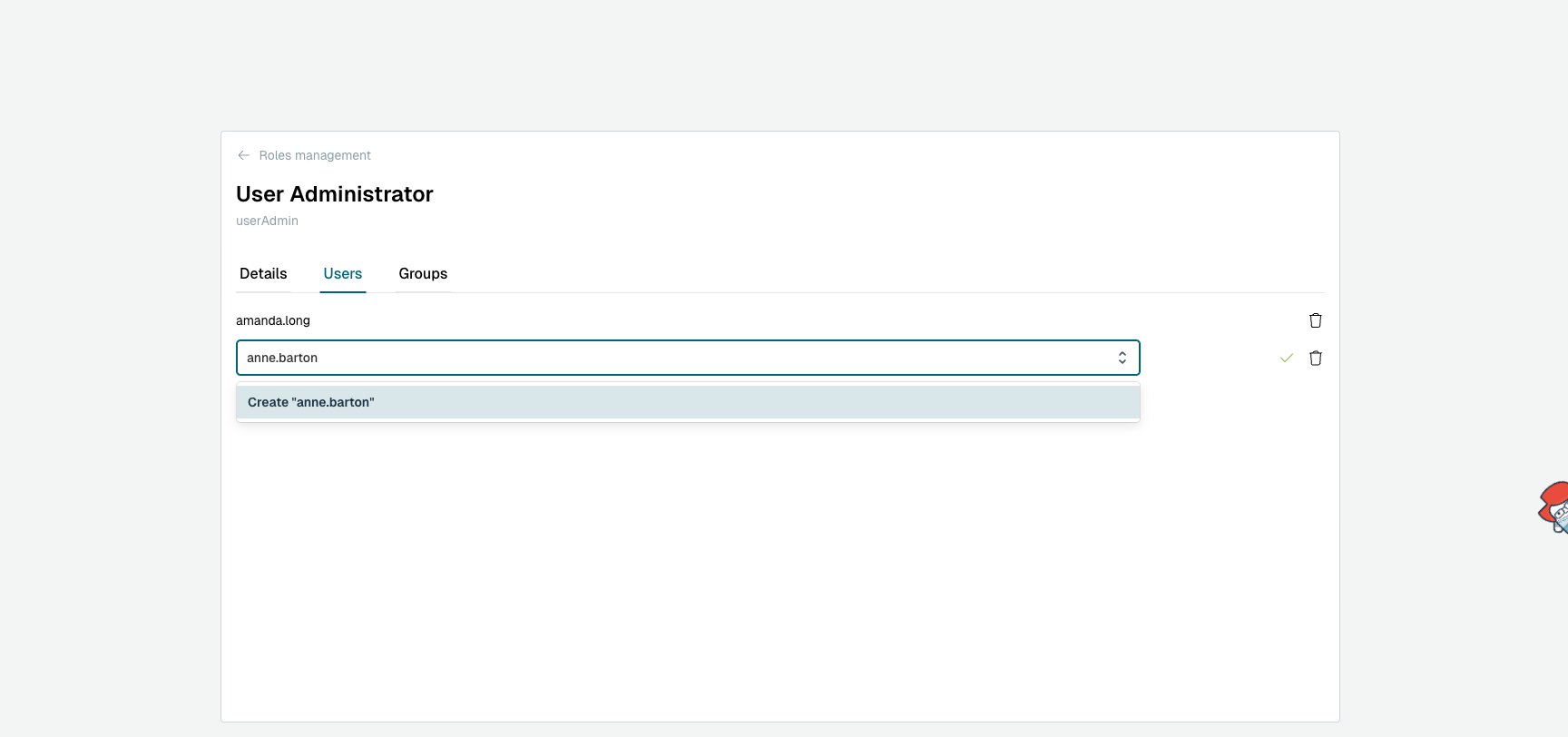
Available permissions
For each role you select the permissions it grants, grouped by category:
Global (tenant-wide) permissions
- Use AI
- Develop form components
- Manage users
- Manage tags
- Manage palettes
- Manage access tokens — personal access tokens
- Create workspaces
- Manage tenants
- Access tutorials
- Manage plugins
- Manage custom roles — includes access to the Roles management page
- Manage license
- Upload license
- Manage Git providers
- Manage AI context
Workspace permissions (scoped roles)
- Edit workspace
- Delete workspace
- Manage linked plugins
- Create packages
- Change workspace visibility
- Change allowed package type
- Edit shared workspaces
- Manage workspace members
- Manage Git provider
- Manage AI context
App / plugin permissions (scoped roles)
- Edit package
- Delete package
- Publish package
- Force-unlock models — unlock models locked by other users
- Create models
- Edit models
- Delete models
- Refresh model relations
- Manage package members
- Manage publish requests
- View publish requests
- Manage revisions
- Manage documents
- Manage tests
- Publish tests
- Push to Git
- Manage Git