Data Objects
Introduction
A powerful way to store structured business data within Flowable are Data Objects. They allow you to either use a database to manage data directly or connect to an external REST-based service. Data objects represent business entities such as customers, patients, projects, or consultations — with typed fields for their attributes.
For the full reference on data object models, see the Introduction to Data Objects.
Creating a Data Object
This video walks through creating a database-backed data object from scratch. The key steps are:
-
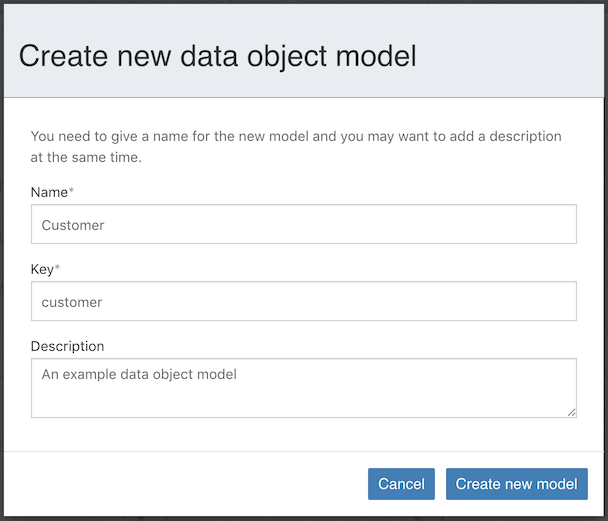
Create a data object model in Flowable Design within your app. Define fields with their types (String, Date, Boolean, Integer, etc.) and designate a field as the Lookup ID (which can be set to autogenerated).
-
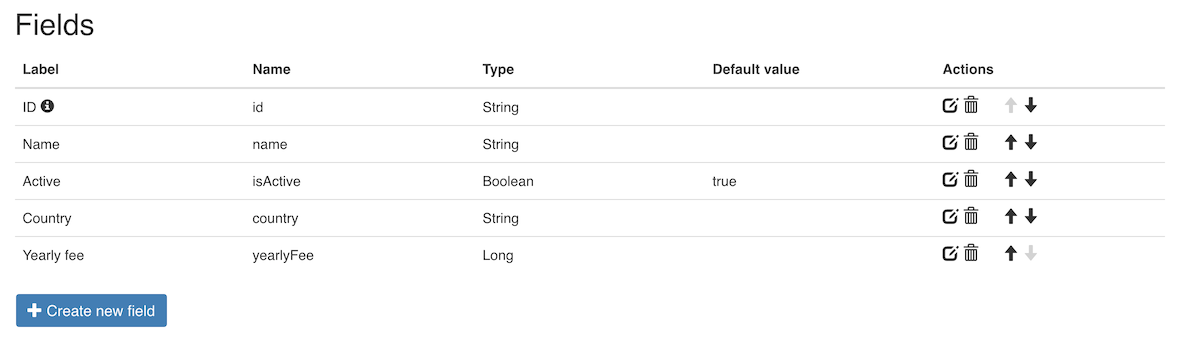
Add fields to define the structure of your business object. For example, a "Patient" data object might have: name (String), dateOfBirth (Date), active (Boolean), country (String).
-
Create a data source (service model) that links the data object to database storage. This defines the table name, column mappings, and which operations are available. Flowable auto-generates standard CRUD operations (lookup, create, update, delete, find all) based on the data object structure.
-
Generate the Liquibase schema by clicking the "Generate schema" button in Design. This creates a database migration script that defines the table structure. Execute the schema to create the actual database table.
 important
Only generate the schema once all fields are properly defined — it cannot be re-generated. If changes are needed later, add new Liquibase changesets manually, or use the auto-update feature (see below).
-
Create a page to manage data object records. Add a Data Object Data Table component to the page, configure it with the data object's search operation, and enable create/edit/delete actions. This gives you a fully functional CRUD interface.
-
Publish the app to Flowable Work. You can now create, view, edit, and delete records through the page.
Using Data Objects in BPMN
This video demonstrates using data objects within BPMN process models to perform CRUD operations. The key patterns are:
Creating a Data Object in a Process
Use the Data Object Create Task from the Flowable Work palette section. Configure:
- The data object model reference
- The creation operation from the service model
- Map process variables to data object fields using expressions (e.g.,
${patientName}mapped to thenamefield) - The output variable to store the created data object's lookup ID
See the Data Object Create Task reference for full property details.
Reading a Data Object
Use the Data Object Lookup Task to fetch an existing data object by its lookup ID. The result is stored in a process variable that can be used in forms and expressions.
See the Data Object Lookup Task reference for full property details.
Updating a Data Object
Use the Data Object Update Task or bind a user task form directly to data object fields. When a form is bound to a data object variable (e.g., {{patient.name}}), completing the user task automatically updates the data object.
The video shows creating a BPMN process that is called from a CMMN case to handle data modification — demonstrating how BPMN and CMMN work together with data objects.
See the Data Object Update Task reference for full property details.
Deleting a Data Object
Use the Data Object Delete Task, passing the data object variable containing the identification value. This removes the record from the database.
See the Data Object Delete Task reference for full property details.
Relations Between Data Objects
This video demonstrates linking data objects together in one-to-many relationships. Using a "Patient" and "Consultation" example:
- Create a linked data object (e.g., "Consultation") in Design that references the parent data object (e.g., "Patient")
- Configure the data source as a linked data object. Flowable automatically generates a join table to manage the relationship
- The Liquibase schema for the join table is automatically created alongside the child table schema
- Operations are auto-generated that include linked data, such as finding all consultations for a specific patient
Using Linked Data Objects in Processes
- The data object create task for the child (Consultation) automatically handles linking to the parent (Patient) when the parent's lookup ID is mapped
- Tasks for creating linked records can be made repeatable, allowing multiple child records to be added
- In forms, a table of linked data objects can be displayed (e.g., all consultations for a patient) using a Data Object Data Table component
Master-Detail Views
This video shows building a dashboard with a master-detail view for related data objects:
- Create a new page with two Data Object Data Table components side by side — one for the master records (e.g., Patients) and one for the detail records (e.g., Consultations)
- Add a reverse reference on the detail data object to enable looking up from child to parent
- Make the master table selectable (single-selection mode) so clicking a row selects it
- Link the detail table to filter based on the master selection — when a patient is selected, only their consultations are shown
- Add filters to the master table for search functionality, including filtering on direct fields or on related data object fields (e.g., filter consultations by patient name)
The result is an interactive dashboard where selecting a master record automatically updates the detail view, with full search and filter capabilities.
Auto-Update of Database Schema Definitions
2025.2.01+You can enable the auto-update of database schema definitions. You need to enable this behavior in your Flowable environment. This will automatically apply the database changes for a data object model on deployment. Because making changes to the database schema can have implications, this feature needs to be explicitly enabled.
