Stash
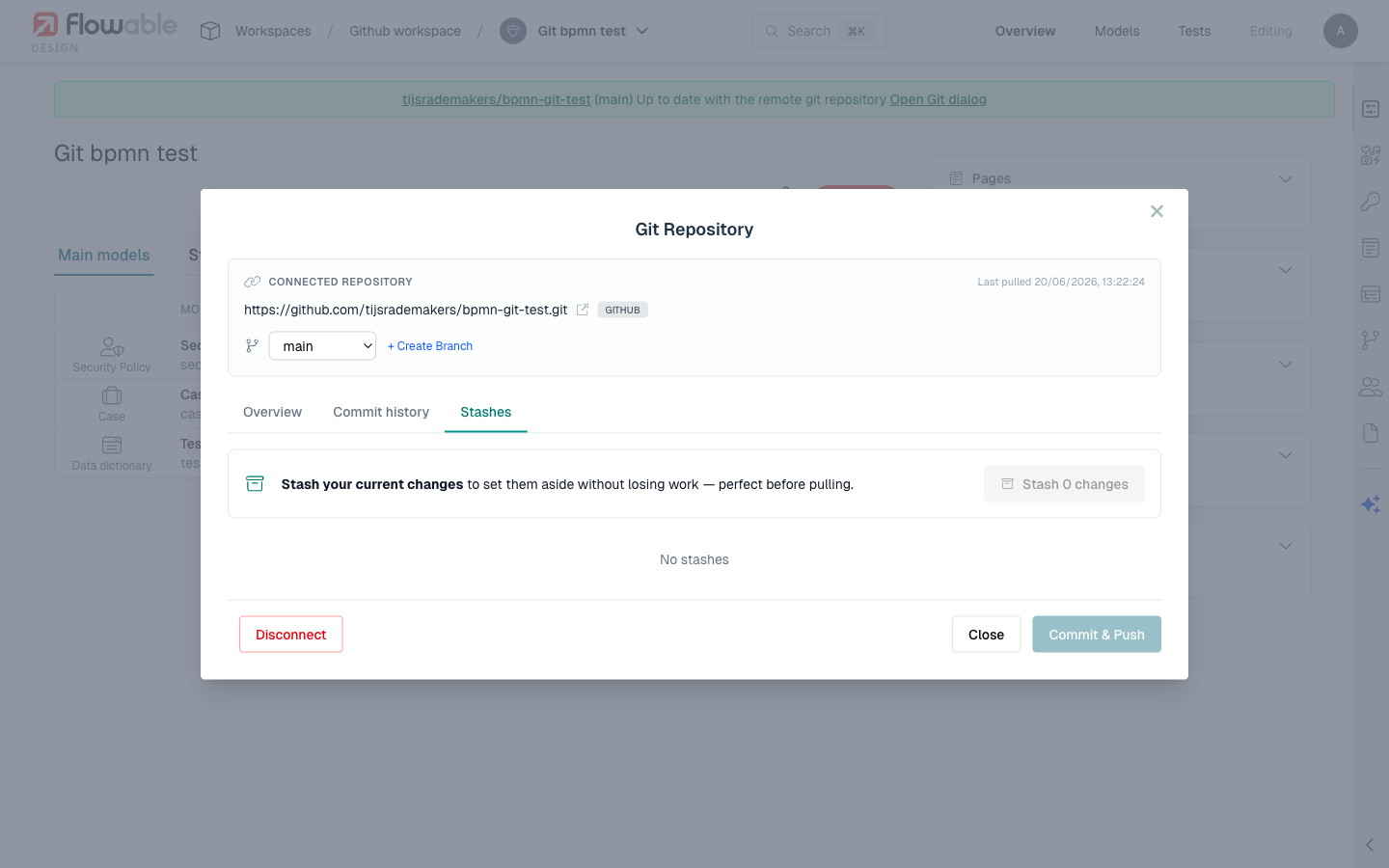
The stash feature allows you to temporarily save your uncommitted local changes without committing them to the repository. This is useful when you need to switch context, such as switching to a different branch or pulling remote changes, without losing your work in progress.
When to Use Stash
Common scenarios for stashing:
- Before switching branches - You have work in progress on the current branch and need to switch to another branch temporarily.
- Before pulling - You want to pull remote changes but have local modifications that might conflict.
- Saving work in progress - You want to save your current state but aren't ready to make a commit (e.g., the changes are incomplete or experimental).
Creating a Stash
To stash your local changes:
- Open the Git panel on the app details page.
- Click Stash.
- Enter an optional stash message describing what you're saving (e.g., "WIP: new approval form").
- Select which models and test sets to include in the stash.
- Confirm the stash.
After stashing, the selected models revert to their last committed state. Your changes are safely stored in the stash and can be restored later.
Restoring a Stash
To restore (pop) a previously stashed set of changes:
- Open the Git panel on the app details page.
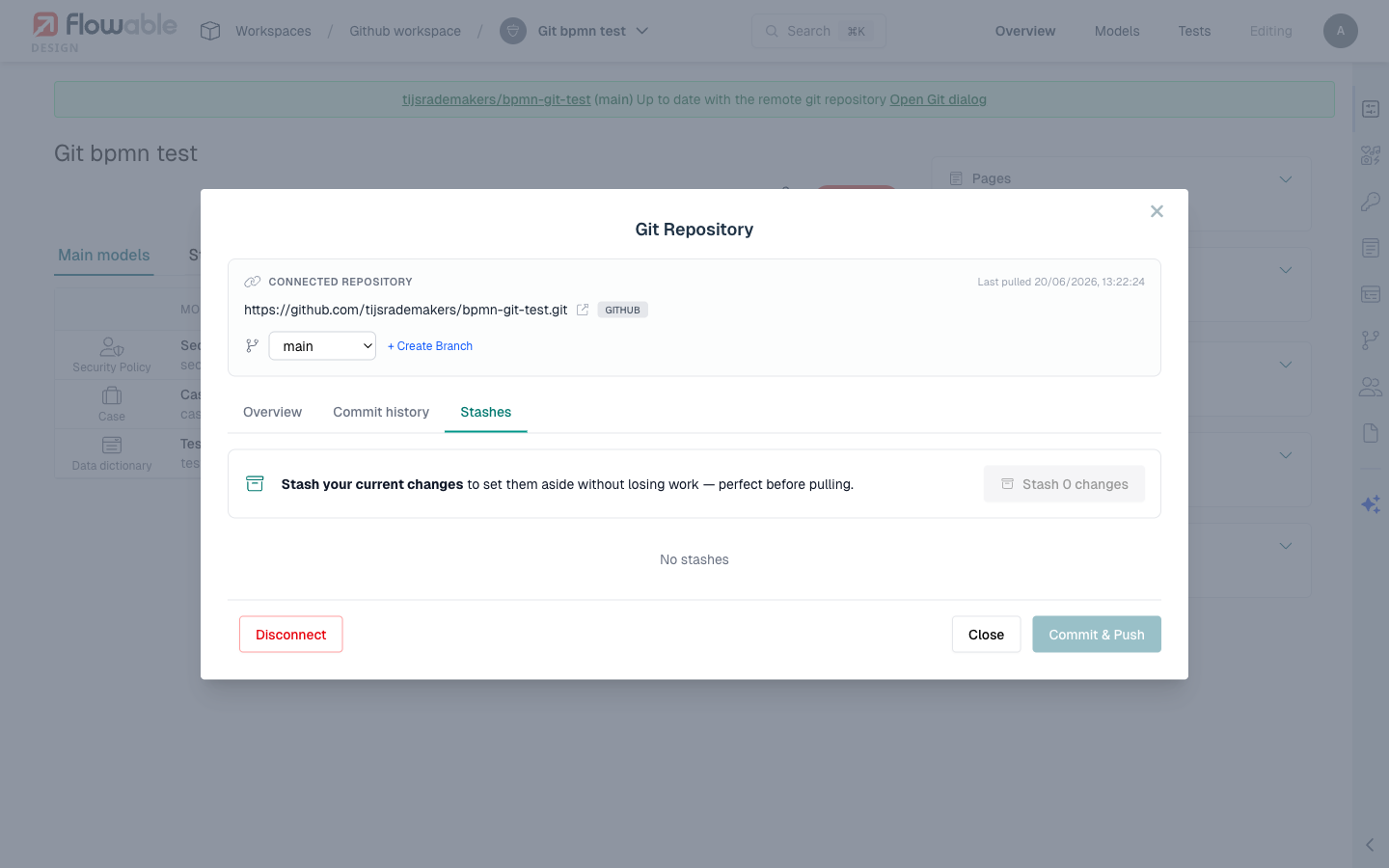
- Click Restore Stash or navigate to the stash list.
- Select the stash entry you want to restore.
- Click Pop to apply the stashed changes back to the current app state.
When a stash is popped, the stashed changes are applied on top of the current app state and the stash entry is removed from the list.
 info
infoIf the app state has changed since you created the stash (e.g., you pulled remote changes or switched branches), restoring the stash may result in conflicts that need to be resolved.
Managing Stashes
Listing Stashes
The Git panel provides access to a list of all saved stashes for the current app. Each stash entry shows:
- The stash message (if provided).
- The author who created the stash.
- The date and time the stash was created.
Dropping a Stash
If you no longer need a stashed set of changes, you can drop (delete) it:
- Open the stash list.
- Select the stash entry to remove.
- Click Drop to permanently delete the stash.
 caution
Dropping a stash permanently deletes the saved changes. This action cannot be undone.
Stash and Test Sets
Test sets are included in stash operations alongside regular models. When you stash changes, any modified test sets are also saved. When you restore a stash, test set changes are restored as well.