Commit and Pull
Committing and pulling are the core synchronization operations in Git Connectivity. Committing pushes your local changes to the remote repository, while pulling fetches remote changes into your local app.
Commit
Opening the Commit Dialog
When you have local changes (indicated by the sync status), click Commit in the Git panel to open the commit dialog.
Model Selection
The commit dialog lists all locally modified models. You can:
- Select all - Include every changed model in the commit.
- Select individually - Choose specific models to commit while leaving others uncommitted.
Each model in the list shows its change type (modified, added, or removed) and an option to preview the diff before committing.
Test sets associated with models are also listed and can be selected for inclusion in the commit.
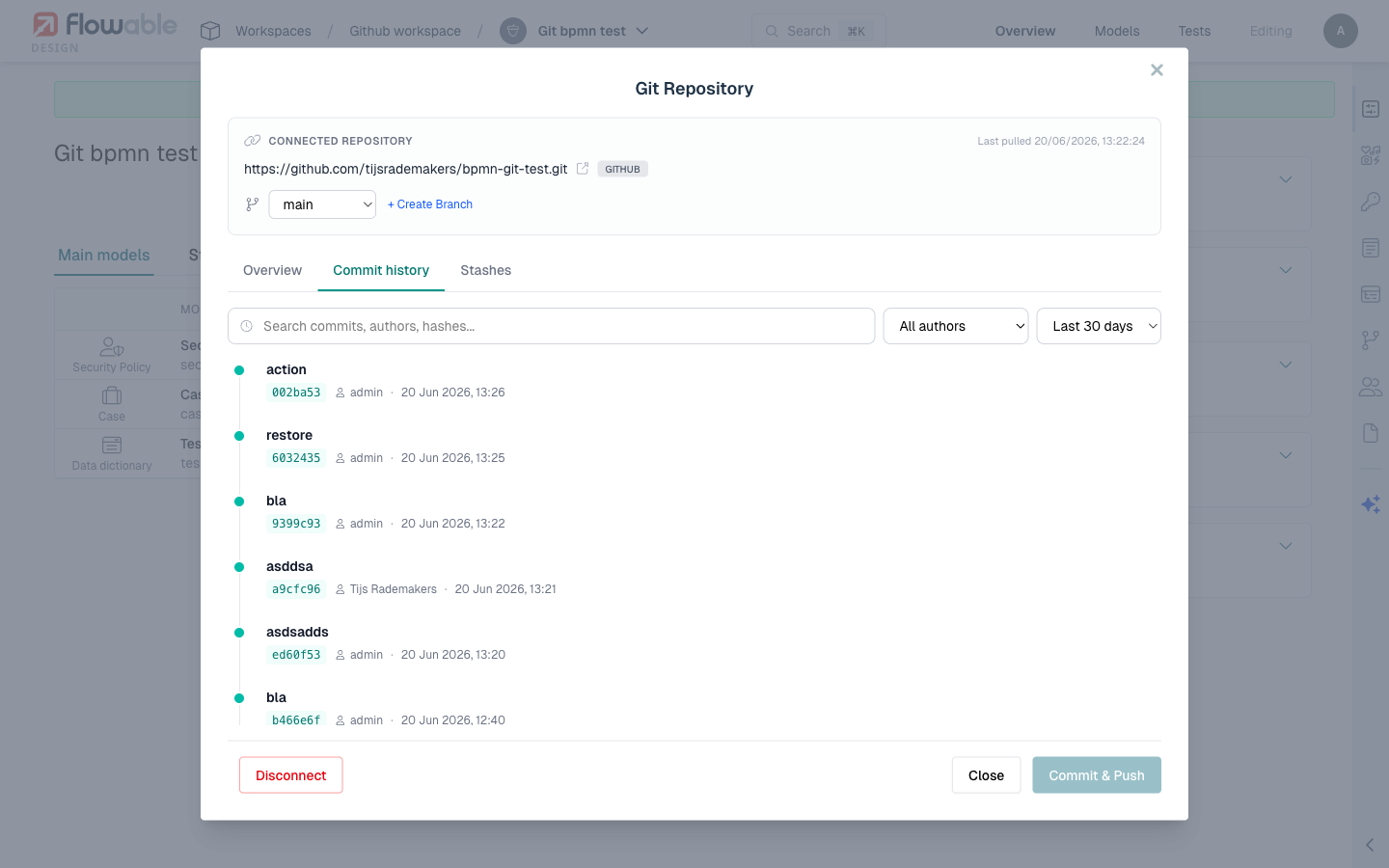
Commit Message
Enter a descriptive commit message that explains what changed and why. Good commit messages help your team understand the history of changes when reviewing the commit log.
 tip
tipWrite commit messages that explain the purpose of the change, not just what was changed. For example, "Add approval step for orders over $10,000" is more useful than "Modified order process".
Commit Author
The commit author is determined automatically from the current user's identity in Flowable Design. If the user does not have an email address configured, the flowable.design.git.commitFallbackEmailDomain property is used to construct a fallback email (e.g., username@noreply.example.com).
What Happens on Commit
When you confirm the commit:
- The selected models are exported to their Git-compatible format (JSON for most model types, with BPMN and CMMN also generating XML).
- The changes are committed to the local Git state with the provided message.
- The commit is pushed to the remote repository.
- The sync status updates to reflect the new state.
Pull
Initiating a Pull
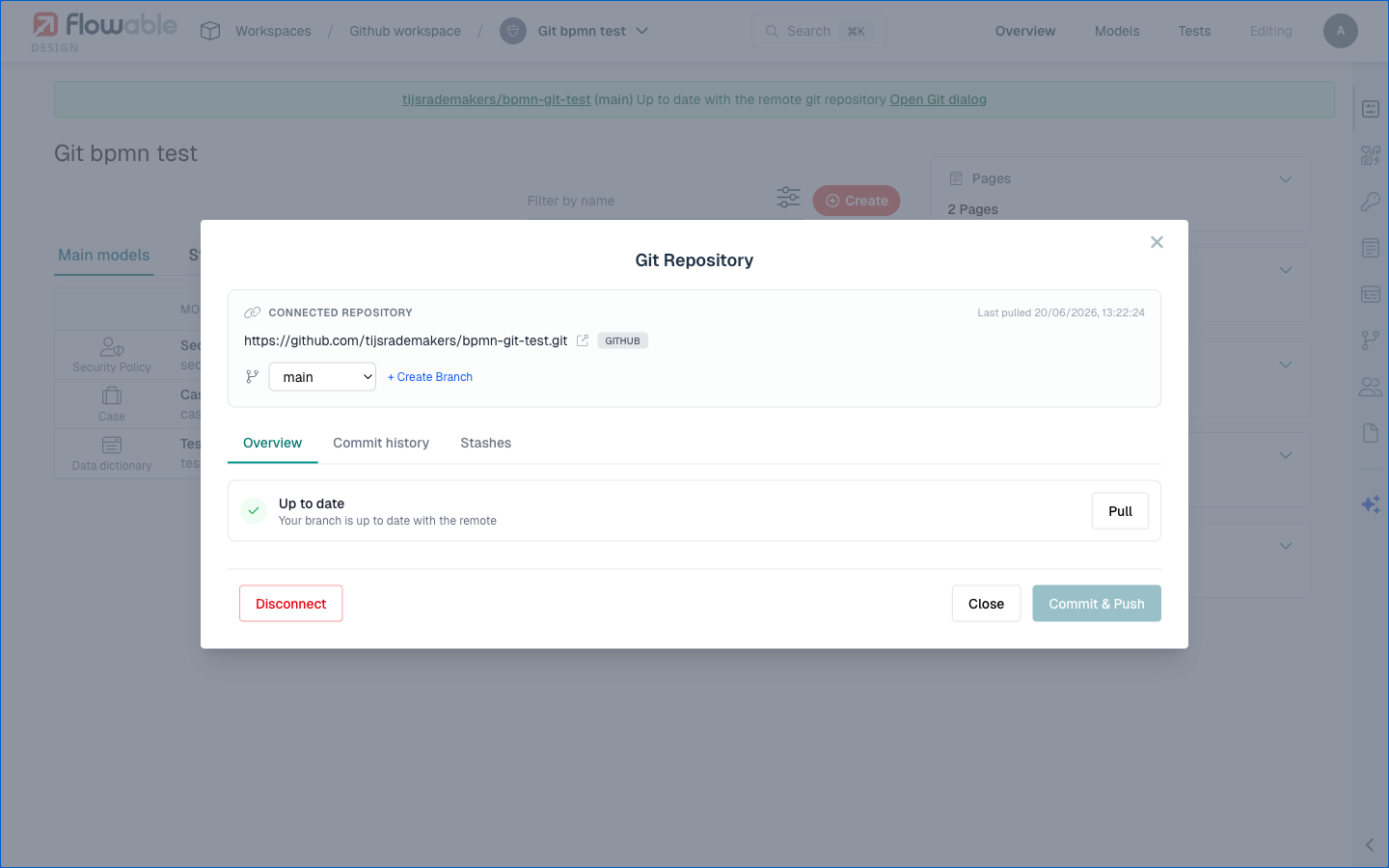
When the remote repository has new commits, the sync status banner indicates that the local app is behind. Click Pull to fetch and apply the remote changes.
Clean Pull (No Conflicts)
If no conflicts exist between the local app and the remote changes:
- The remote changes are fetched and applied.
- Models that were modified remotely are updated in the local app.
- New models from the remote are added to the app.
- Models deleted on the remote are removed from the local app.
- The sync status updates to "In sync".
Pull with Conflicts
If the remote changes conflict with uncommitted local changes:
- Design detects the conflicts and pauses the pull operation.
- The conflict resolution UI is presented.
- After resolving all conflicts, the pull completes.
tipTo avoid conflicts, either commit or stash your local changes before pulling. This makes the pull a straightforward fast-forward operation.
Revert
Reverting Local Changes
The Revert action discards local changes and restores models to their last committed state from the remote repository.
- Click Revert in the Git panel.
- Select which models to revert (or revert all).
- Confirm the action.
The selected models are restored to their remote version. Any local modifications to those models are permanently discarded.
 caution
Reverting is destructive for local changes. Once reverted, your uncommitted modifications cannot be recovered. If you want to preserve your changes for later, use Stash instead.
Configuration Properties
| Property | Default | Description |
|---|---|---|
flowable.design.git.enabled | true (when JGit is on the classpath) | Enables or disables Git Connectivity features. |
flowable.design.git.commitFallbackEmailDomain | (empty) | Domain used to construct a fallback email address for commit authors who don't have an email configured (e.g., noreply.example.com). |