Git Panel
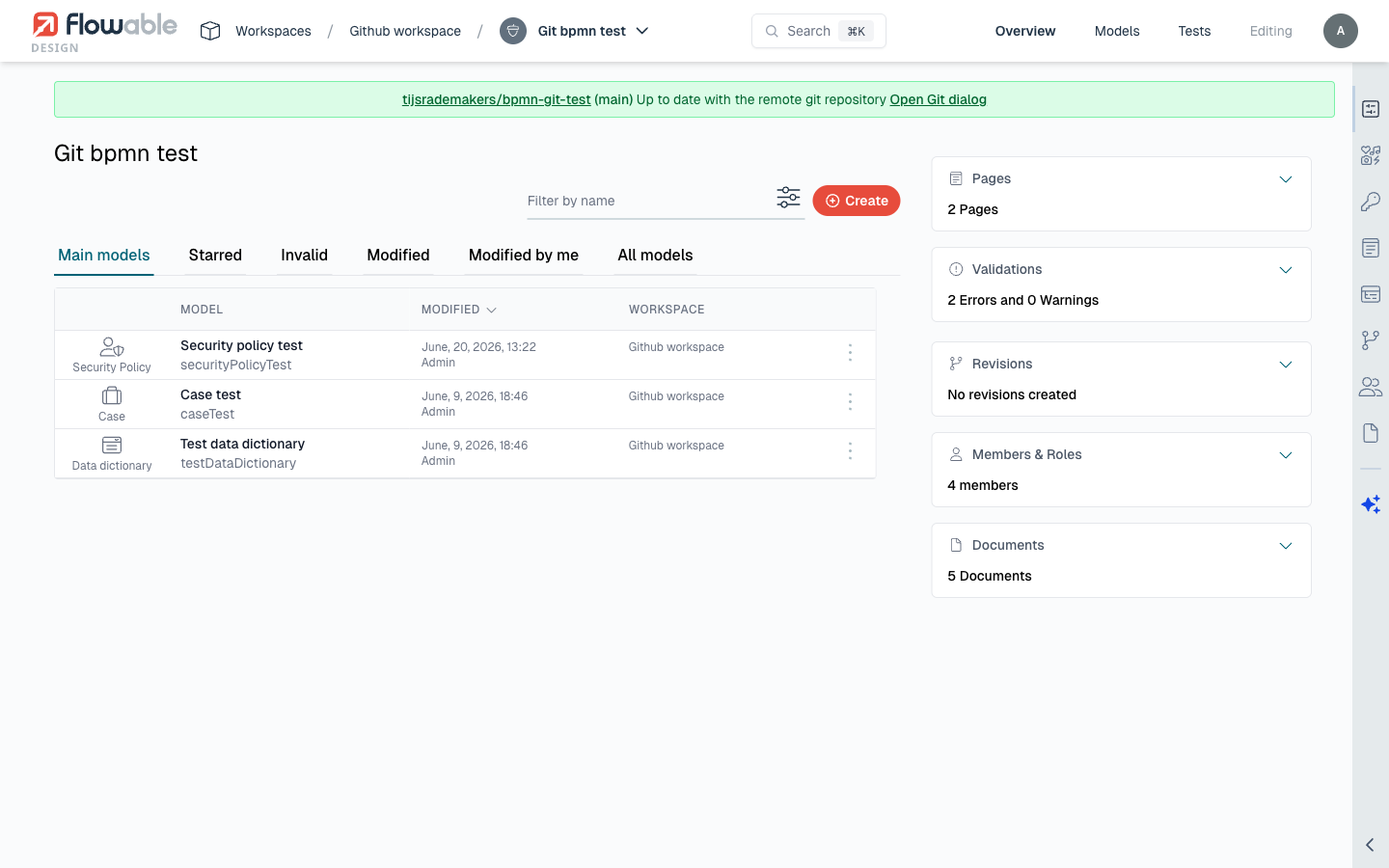
The Git panel is the central UI component for all Git operations in Flowable Design. It appears in the app details view for any app that is connected to a Git repository, and provides access to all Git-related actions, status information, and history.
Location
The Git panel is accessible from the app details page of any Git-connected app. If the app is not yet connected to a Git repository, the panel shows a setup option instead.
Panel Layout
The Git panel is organized into three tabs — Overview, History, and Stashes — and consists of the following areas:
Status Area
At the top of the panel, the status area shows:
- Current branch - The name of the active branch (e.g.,
main,feature/approval-flow). - Sync status - Whether the local app is in sync with the remote, has local changes, or is behind the remote. See Sync Status for details.
- Last sync time - When the app was last synchronized with the remote repository.
Action Buttons
The panel provides the following action buttons:
| Action | Description | Required Permission |
|---|---|---|
| Commit | Open the commit dialog to push local changes to the remote. | Push to Git |
| Pull | Fetch and apply remote changes to the local app. | Edit package |
| Revert | Revert local changes back to the remote version. | Edit package |
| Create Branch | Create a new branch from the current branch head. | Push to Git |
| Switch Branch | Switch to a different remote branch. | Edit package |
| Stash | Temporarily save uncommitted changes. | Edit package |
| Restore Stash | Restore previously stashed changes. | Edit package |
Actions are enabled or disabled based on the current sync state and user permissions. For example, Commit is only enabled when there are local changes, and Pull is only enabled when the remote has new commits.
Contextual Actions
Some actions are not permanent buttons but appear as inline links on the Overview tab when they are applicable:
| Action | When it appears | Required Permission |
|---|---|---|
| Open PR | The app has uncommitted local changes and the repository has at least one branch besides the current one. Opens the pull request dialog. See Pull Requests. | Push to Git |
| Stash all | The app has uncommitted local changes. Switches to the Stashes tab to stash them. See Stash. | Edit package |
 info
infoBecause Open PR builds the pull request from your local changes, it disappears once those changes have been committed and pushed. See Pull Requests for the full workflow.
Changed Models List
When local changes exist, the panel lists all modified, added, and removed models with their change type. Each model entry shows:
- The model name and type (BPMN, CMMN, Form, etc.).
- The change type (modified, added, removed).
- An option to view the diff for that model.
Git Setup Form
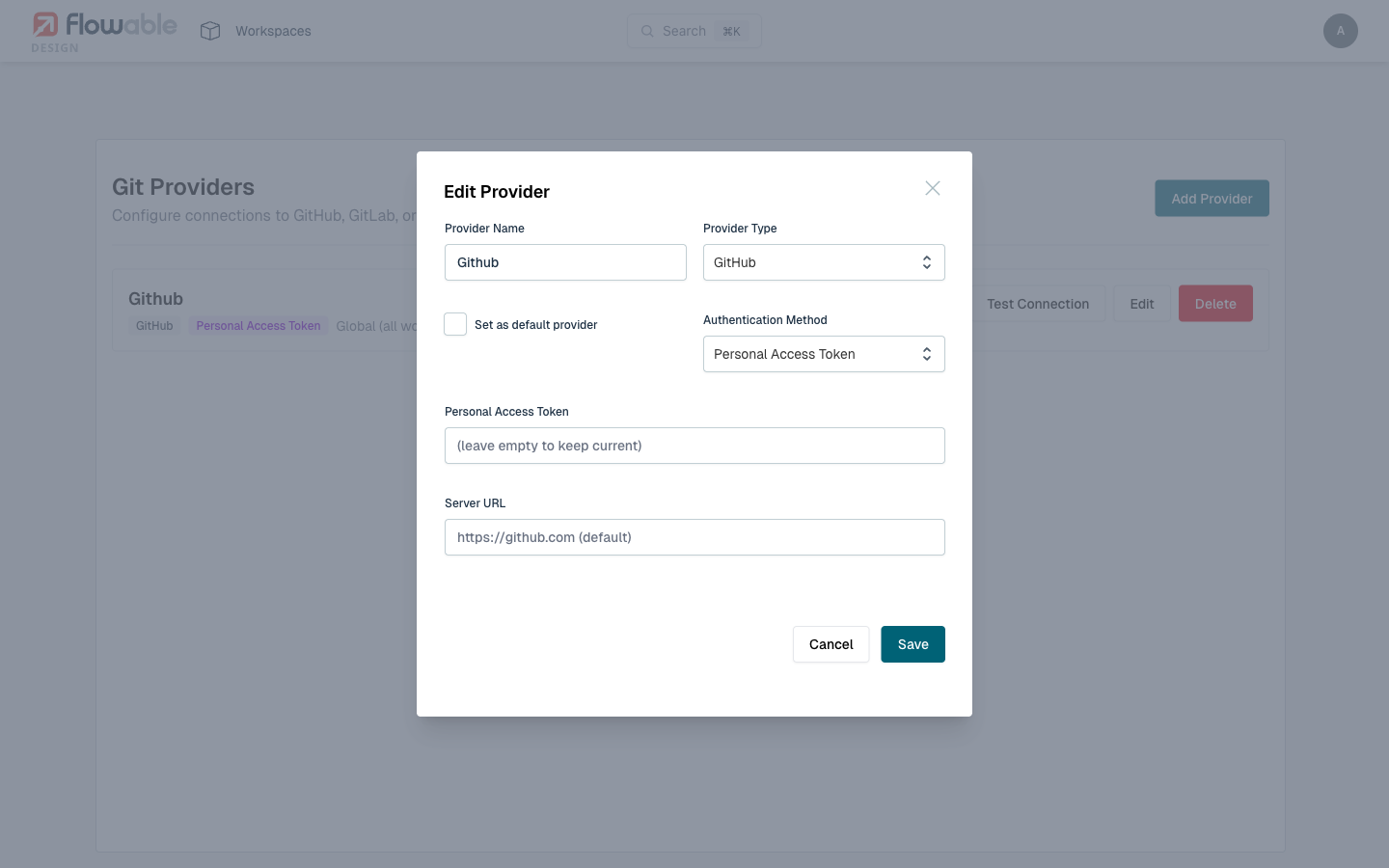
For apps not yet connected to Git, the Git panel shows the setup form. The form collects:
| Field | Description | Required |
|---|---|---|
| Git Provider | The provider configuration to use for authentication. | Yes |
| Repository URL | The URL of the Git repository to connect to. For provider types that support it, you can browse and select from available repositories. | Yes |
| Branch | The branch to connect to. Default is main. | Yes |
| Sub-path | The subdirectory within the repository for monorepo setups. Leave empty to use the repository root. | No |
Disconnecting from Git
To disconnect an app from its Git repository:
- Open the Git panel.
- Access the Git configuration settings.
- Choose to remove the Git connection.
This removes the Git configuration from the app but does not delete the app's models. The app returns to being a standard, non-Git-connected Design app.
 caution
Disconnecting from Git means the app will no longer be tracked in version control. Any uncommitted changes will be preserved in the app but will not be pushed to the repository. Consider committing all changes before disconnecting.